Veryfi Lens for Checks - Comprehensive Integration Guide
Overview
This guide provides step-by-step instructions for integrating Veryfi Lens for Checks into your iOS and Android application. The guide focuses on configuration settings that ensure compliance with X9 banking standards, which is critical for check processing and deposit workflows.
- iOS
- Android
Table of Contents
- Prerequisites
- Obtaining Credentials
- Installation
- Project Configuration
- SDK Initialization
- Recommended Settings for X9 Compliance
- Implementation
- Response Handling
- Best Practices
Prerequisites
Before starting the integration, ensure you have:
- API credentials from Veryfi Hub (Client ID, Username, API Key, URL)
- Access credentials for SDK download (CocoaPods username and password)
- Xcode project with Swift Package Manager (recommended) or CocoaPods
- Xcode 16.4 or later for compilation
- iOS 12.1 or later
- CocoaPods installed (if using CocoaPods method - deprecated)
Obtaining Credentials
1. Access Credentials (SDK Download)
To download the Veryfi Lens SDK, you need access credentials:
- Sign in to the Veryfi API Portal
- Navigate to Settings → Keys
- In the Lens: Cocoapods (iOS) section, click "Add Access Key"
- Fill in:
- First Name
- Last Name
- Email Address
- Create a Password (save this securely - it won't be shown again)
- Your username will be generated automatically
Store credentials securely using Git Credential Tool (Recommended):
git credential approve <<EOF
protocol=https
host=repo.veryfi.com
path=shared/lens/veryfi-lens-podspec.git
username=COCOAPODS_USERNAME
password=COCOAPODS_PASSWORD
EOF
2. Configuration Credentials (API Access)
To configure the SDK, you need API credentials:
- In the Veryfi Hub, go to Settings → Keys
- In the API Auth Credentials section, you'll find:
- Client ID: Unique identifier for your application
- Username: Your account username
- API Key: Authentication key for API access
- Environment URL: API endpoint (e.g.,
api.veryfi.comordevapi.veryfi.com)
⚠️ Security Note: Never commit these credentials to version control. Store them securely using environment variables, Keychain, or secure configuration files.
Installation
Option A: Swift Package Manager (Recommended)
Store SPM Access Credentials:
git credential approve <<EOF
protocol=https
host=repo.veryfi.com
path=shared/lens/veryfi-lens-spm.git
username=COCOAPODS_USERNAME
password=COCOAPODS_PASSWORD
EOF
In Xcode:
- File → Add Package Dependencies
- Enter package URL:
https://repo.veryfi.com/shared/lens/veryfi-lens-spm.git - Enter credentials when prompted (use CocoaPods username and password)
- Select version:
- Latest: Choose Dependency Rule
Branchwith valuemaster - Specific version: Use Dependency Rule
Exact Versionwith SemVer format (e.g.,2.2.33)
- Latest: Choose Dependency Rule
Add to Target: Ensure the package is added to your app target
Option B: CocoaPods (Deprecated)
⚠️ Note: CocoaPods installation is deprecated. Use Swift Package Manager for new projects.
Update Podfile:
source 'https://repo.veryfi.com/shared/lens/veryfi-lens-podspec.git'
source 'https://github.com/CocoaPods/Specs.git'

target 'YourApp' do
  use_frameworks!
  pod 'VeryfiLens', '~> 2.2.33.4'  # Replace with latest version
end
Note: Version release notes can be found at: https://github.com/veryfi/veryfi-lens-checks-ios-demo/releases
Install:
pod repo update
pod install
Always open
.xcworkspace, not.xcodeproj
Project Configuration
1. Update Build Settings
Note: If using Xcode 14+, these settings may be deprecated and not required.
- Enable Bitcode:
NO - Validate Workspace:
YES
2. Add Required Permissions to Info.plist
Add the following keys to your Info.plist:
<key>NSCameraUsageDescription</key>
<string>Scan checks for deposit processing</string>

<key>NSPhotoLibraryAddUsageDescription</key>
<string>Back up check images in your photo gallery</string>

<key>NSPhotoLibraryUsageDescription</key>
<string>Choose check images to process from your photo gallery</string>
Or via Xcode UI:
- Select your project → Target → Info tab
- Add:
Privacy - Camera Usage Description= "Scan checks for deposit processing"Privacy - Photo Library Additions Usage Description= "Back up check images in your photo gallery"Privacy - Photo Library Usage Description= "Choose check images to process from your photo gallery"
SDK Initialization
1. Import the SDK
import VeryfiLens
2. Configure Credentials
let CLIENT_ID = "XXX" // Replace with your Client ID
let AUTH_USERNAME = "XXX" // Replace with your Username
let AUTH_APIKEY = "XXX" // Replace with your API Key
let URL = "XXX" // Replace with your Endpoint URL (e.g., api.veryfi.com)

let veryfiLensCredentials = VeryfiLensCredentials(
    clientId: CLIENT_ID,
    username: AUTH_USERNAME,
    apiKey: AUTH_APIKEY,
    url: URL
)
3. Configure Settings for Checks
let veryfiLensSettings = VeryfiLensSettings()
veryfiLensSettings.documentTypes = ["check"]
veryfiLensSettings.showDocumentTypes = true
// ... configure additional settings (see Recommended Settings section)
Note: See the "Recommended Settings for X9 Compliance" section below for comprehensive instructions on recommended settings.
4. Implement the Delegate
extension ViewController: VeryfiLensDelegate {
    func veryfiLensClose(_ json: [String : Any]) {
        // Handle camera close event
        // json contains: session_scan_count, msg, etc.
    }

    func veryfiLensError(_ json: [String : Any]) {
        // Handle errors during processing
        // json contains: error, msg, etc.
    }

    func veryfiLensSuccess(_ json: [String : Any]) {
        // Handle successful check processing
        // json contains: data, package_id, document_type, etc.
    }

    func veryfiLensUpdate(_ json: [String : Any]) {
        // Handle processing updates (upload progress, thumbnails, etc.)
        // json contains: status, msg, package_id, progress, etc.
    }
}
5. Initialize the SDK
VeryfiLens.shared().delegate = self
VeryfiLens.shared().configure(
    with: veryfiLensCredentials,
    settings: veryfiLensSettings
) { success in
    if success {
        // SDK configured successfully
        print("Veryfi Lens configured successfully")
    } else {
        // Handle configuration failure
        print("Veryfi Lens configuration failed")
    }
}
6. Launch the Camera
VeryfiLens.shared().showCamera(in: self)
Recommended Settings for X9 Compliance
The following settings are critical for ensuring checks meet X9 banking standards and prevent rejection by banking partners. These are the default values in VeryfiLensChecksSettings():
Critical Validation Settings
These settings enforce strict validation to meet X9 standards:
{
  "validateCheckSize": true,
  "validateCheckSides": true,
  "validateCheckCorners": true,
  "allowSubmitUndetectedDocsIsOn": false,
  "captureMarginRatio": 0.08
}
Purpose:
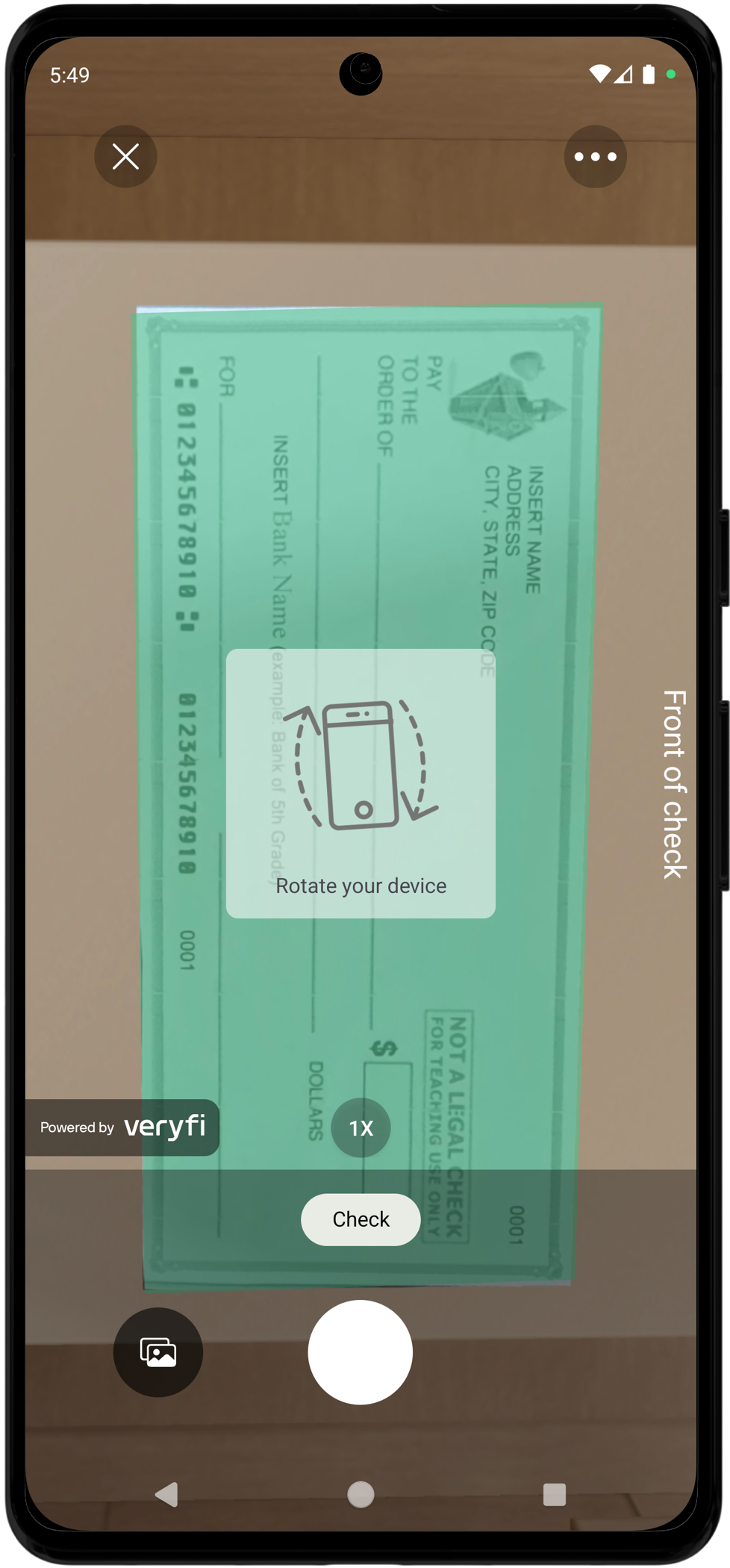
validateCheckSize: Ensures check dimensions meet minimum requirements (at least 820px width or 351px height)validateCheckSides: Validates that the correct side (front/back) is being capturedvalidateCheckCorners: Ensures all four corners of the check are visible and detectedallowSubmitUndetectedDocsIsOn: Prevents submission of images that don't contain a valid checkcaptureMarginRatio: Ensures check is properly positioned with margin; this setting is tied tovalidateCheckCorners
Check-Specific Settings
{
  "documentTypes": ["check"],
  "showDocumentTypes": true,
  "checksBackIsOn": true,
  "checksBackIsRequired": false,
  "checkSequenceMode": true,
  "checksCropMargin": 5,
  "forceLandscapeImage": true,
  "multipleDocumentsIsOn": false
}
Purpose:
checksBackIsOn: Enables capture of check back side after front sidecheckSequenceMode: Provides alternative UX for sequential front/back scanning (recommended)checksCropMargin: Sets margin around cropped checks (0-10, default: 5)forceLandscapeImage: Forces horizontal preview orientation for checksmultipleDocumentsIsOn: When enabled, this setting will send multiple images as different transactions
Note: checksBackIsOn and checksBackIsRequired are implicit in checkSequenceMode, so they are not relevant when the latter is enabled.
Image Quality Settings
{
  "autoRotateIsOn": false,
  "autoSkewCorrectionIsOn": false,
  "blurDetectionIsOn": true,
  "allowSubmitBlurredDocsIsOn": false,
  "glareDetectionIsOn": false,
  "fraudDetectionIsOn": true,
  "gpuIsOn": true
}
Purpose:
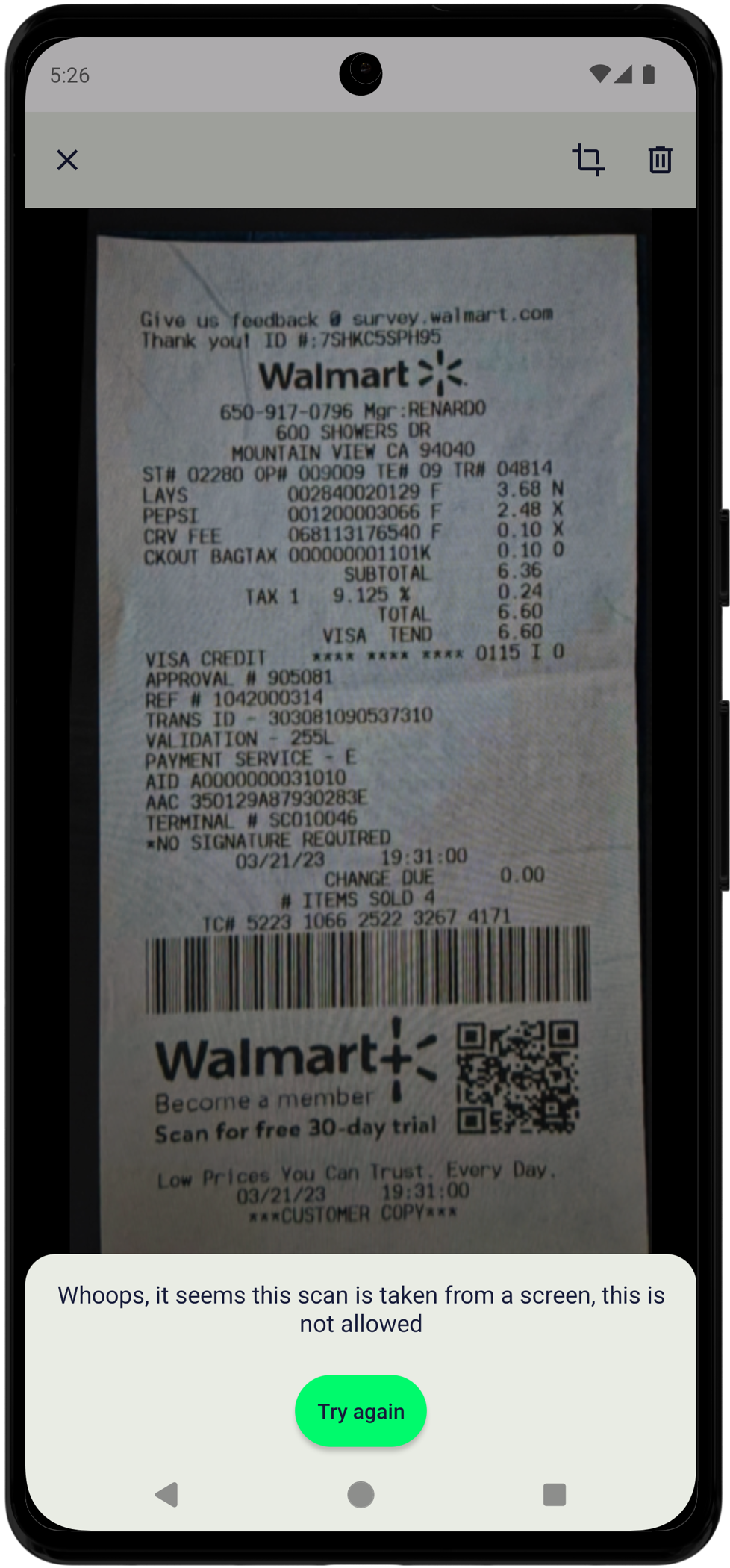
autoRotateIsOn: Disabled to preserve original check orientationautoSkewCorrectionIsOn: Disabled to maintain check geometryblurDetectionIsOn: Enabled to ensure image clarityallowSubmitBlurredDocsIsOn: Enforces a hard check on blurred images at the submit preview screenfraudDetectionIsOn: Requires the feature to be enabled in your account configuration; checks whether the capture is from an LCD screengpuIsOn: Enabled for faster processing (useful to disable on older devices, but all actively supported iPhone devices handle this without issues)
Note: If preventing LCD screen captures is important for your use case, the showLCDIsNotAllowed setting will add a hard check to prevent submitting those types of captures.
Crop Layout Settings (Visual Guide)
{
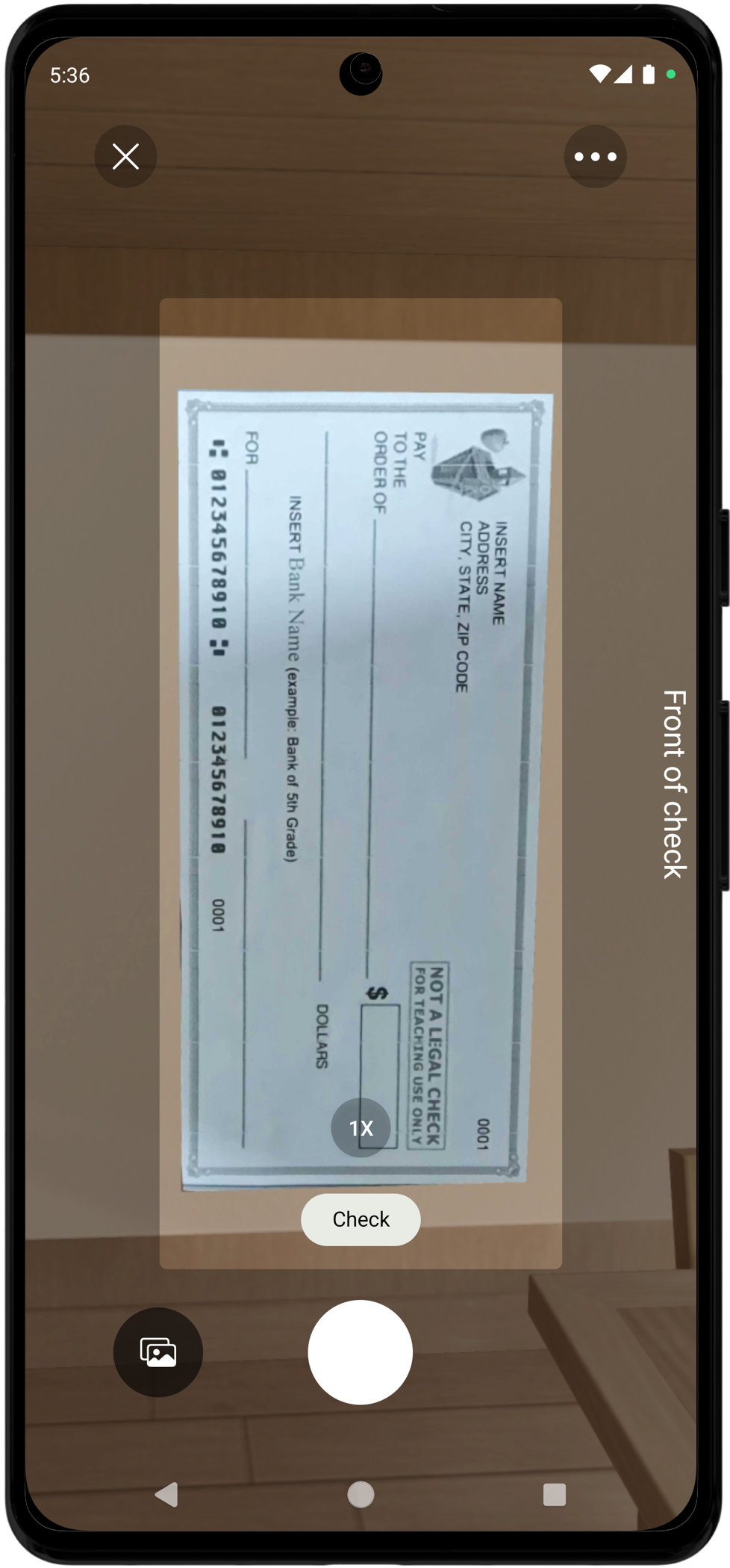
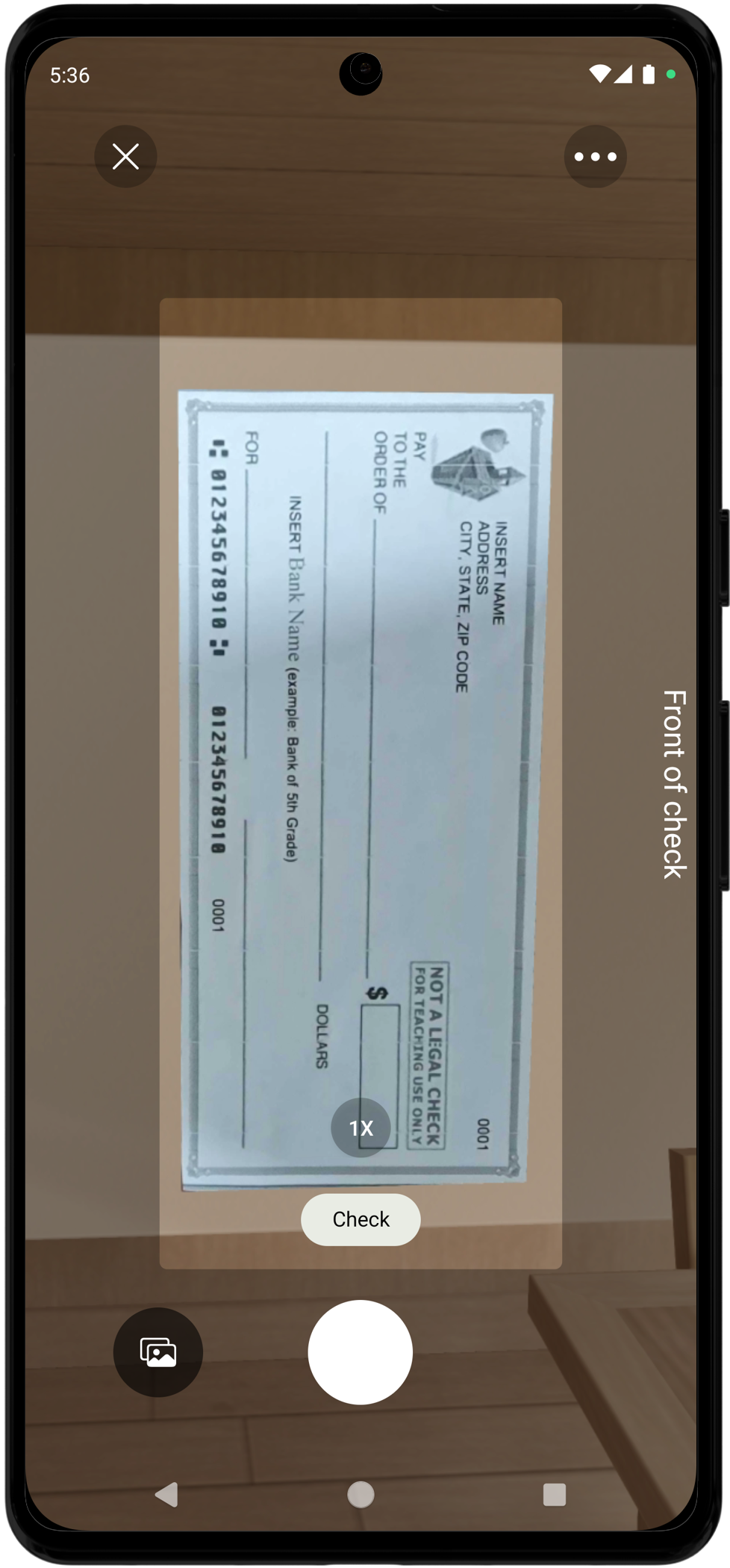
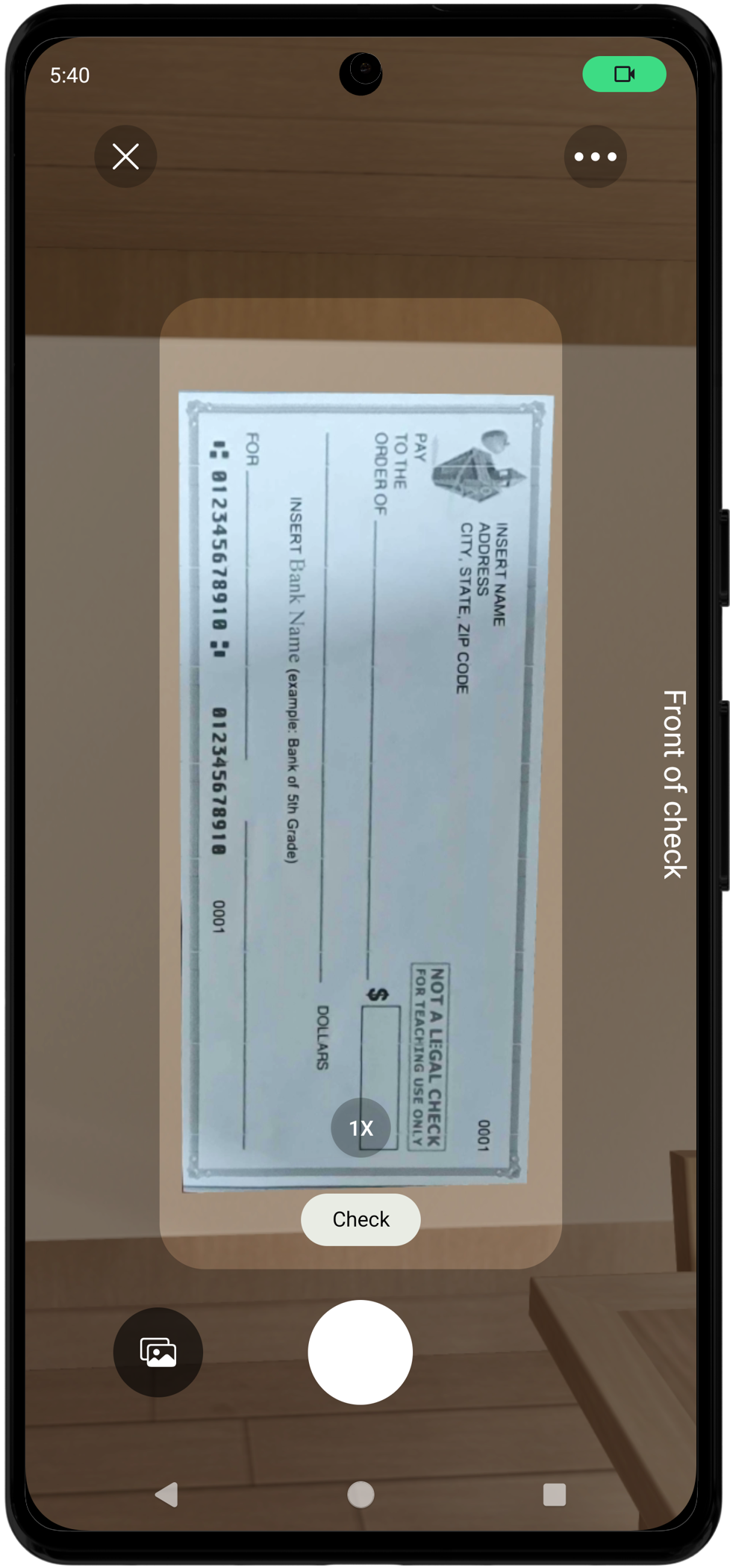
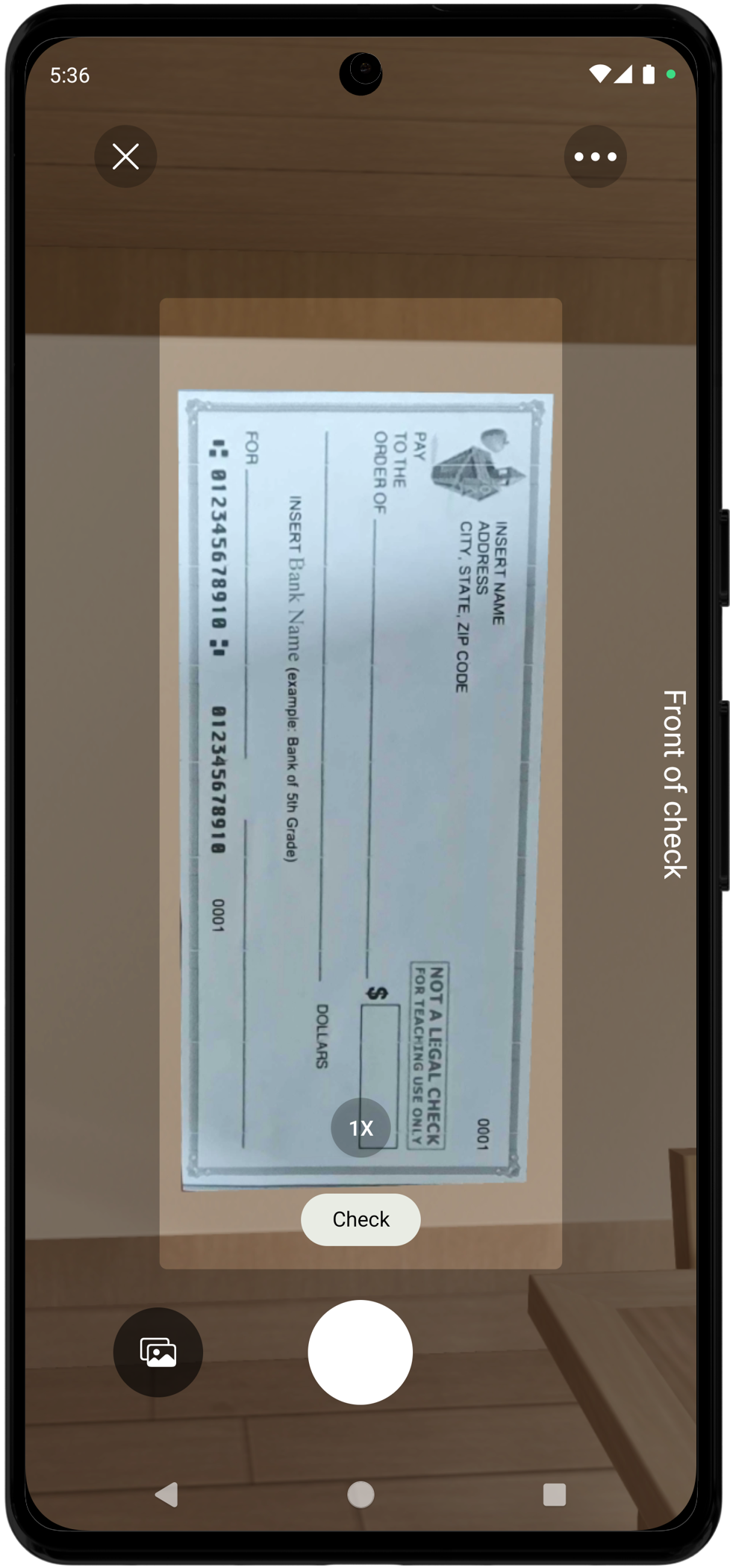
  "cropLayoutWidth": 60,
  "cropLayoutAspectRatio": 2.18,
  "cropLayoutCornerRadius": 5,
  "cropLayoutOverlayAlpha": 0.3,
  "cropLayoutShowDelay": 8.0,
  "forceCropLayoutOnRetake": true,
  "checksMinAspectRatio": 1.9,
  "checksMaxAspectRatio": 2.85
}
Purpose:
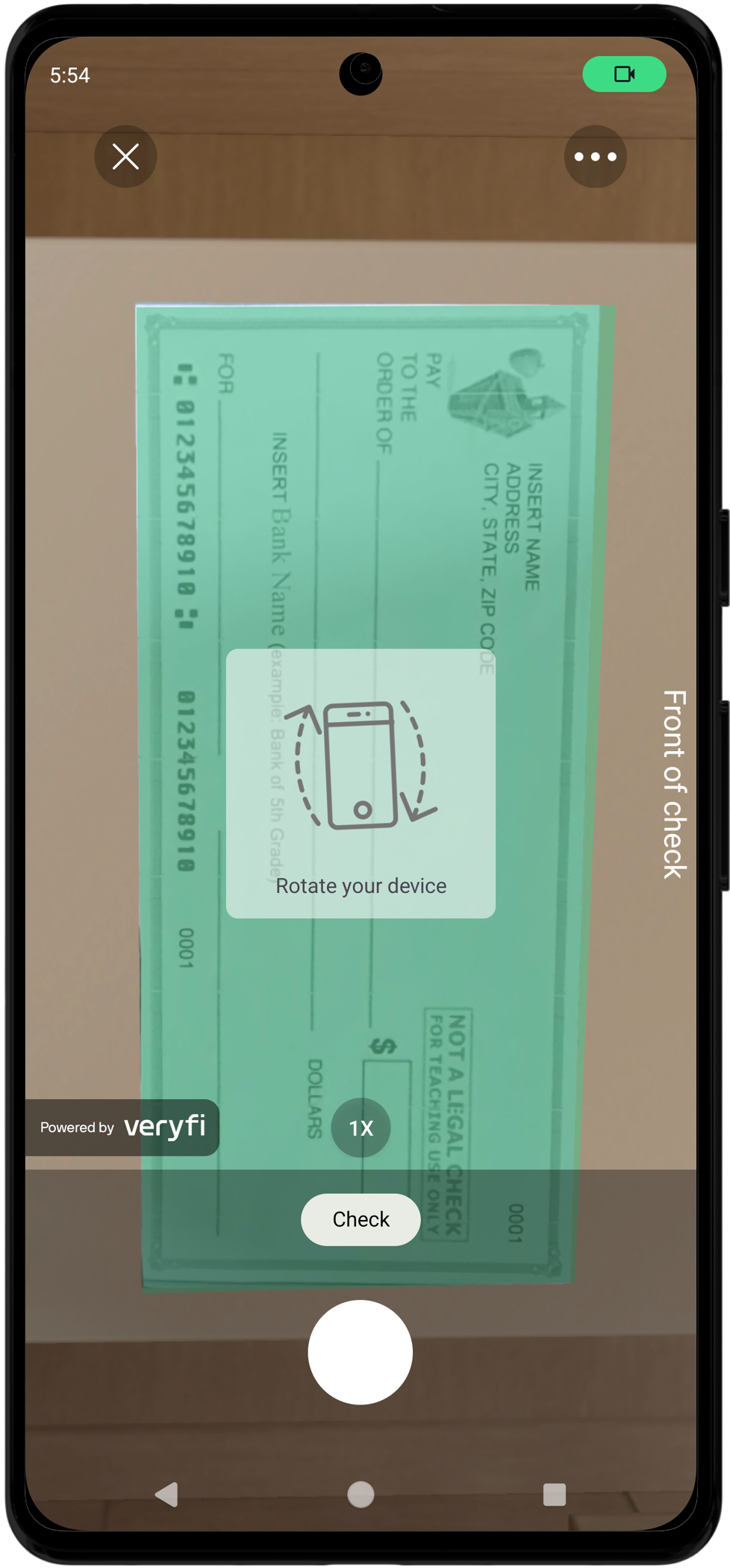
- Provides visual guide for proper check positioning
cropLayoutAspectRatio: Matches standard check aspect ratio (2.18:1)checksMinAspectRatio/checksMaxAspectRatio: Validates check proportions
Processing Settings
{
  "dataExtractionEngine": "api",
  "autoCaptureIsOn": false,
  "returnStitchedPDF": true,
  "saveLogsIsOn": true
}
Purpose:
dataExtractionEngine: Uses cloud API for accurate extractionautoCaptureIsOn: Disabled for manual control (recommended for checks)returnStitchedPDF: Returns PDF when multiple images are combined
UI/UX Settings
{
  "moreMenuIsOn": false,
  "autoSelectManualCropIsOn": true,
  "backupDocsToGallery": false,
  "backupDocsToiCloud": false,
  "galleryIsOn": false
}
Purpose:
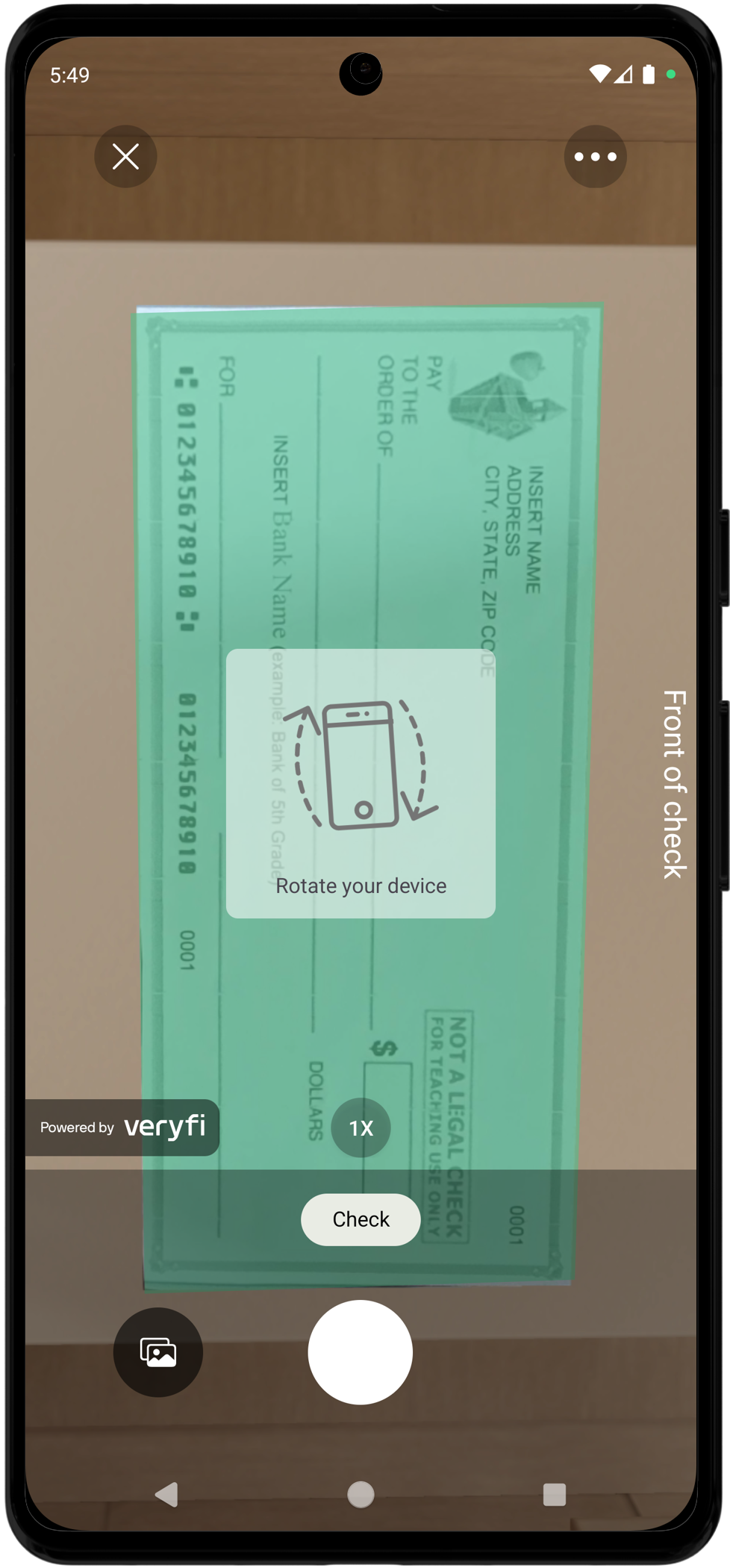
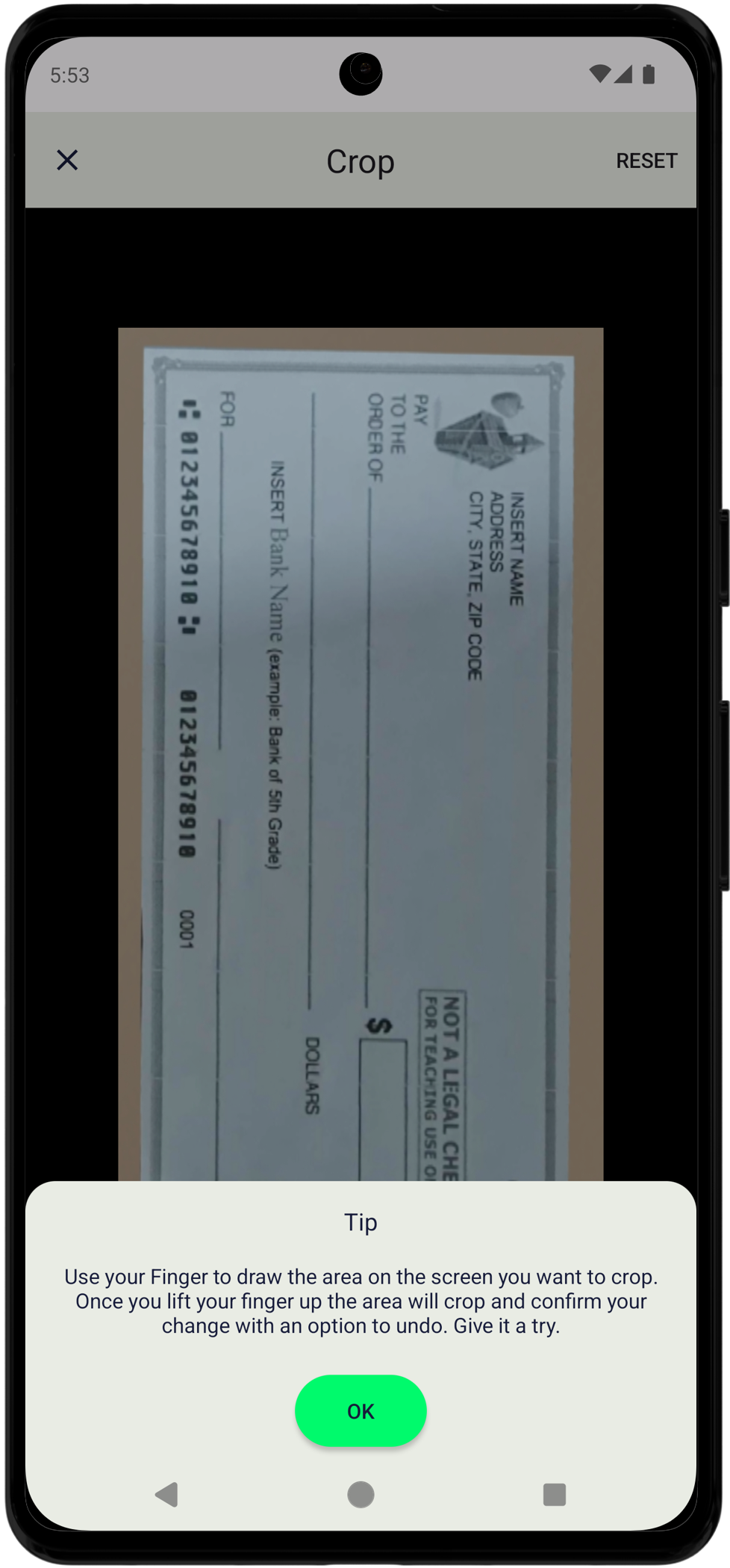
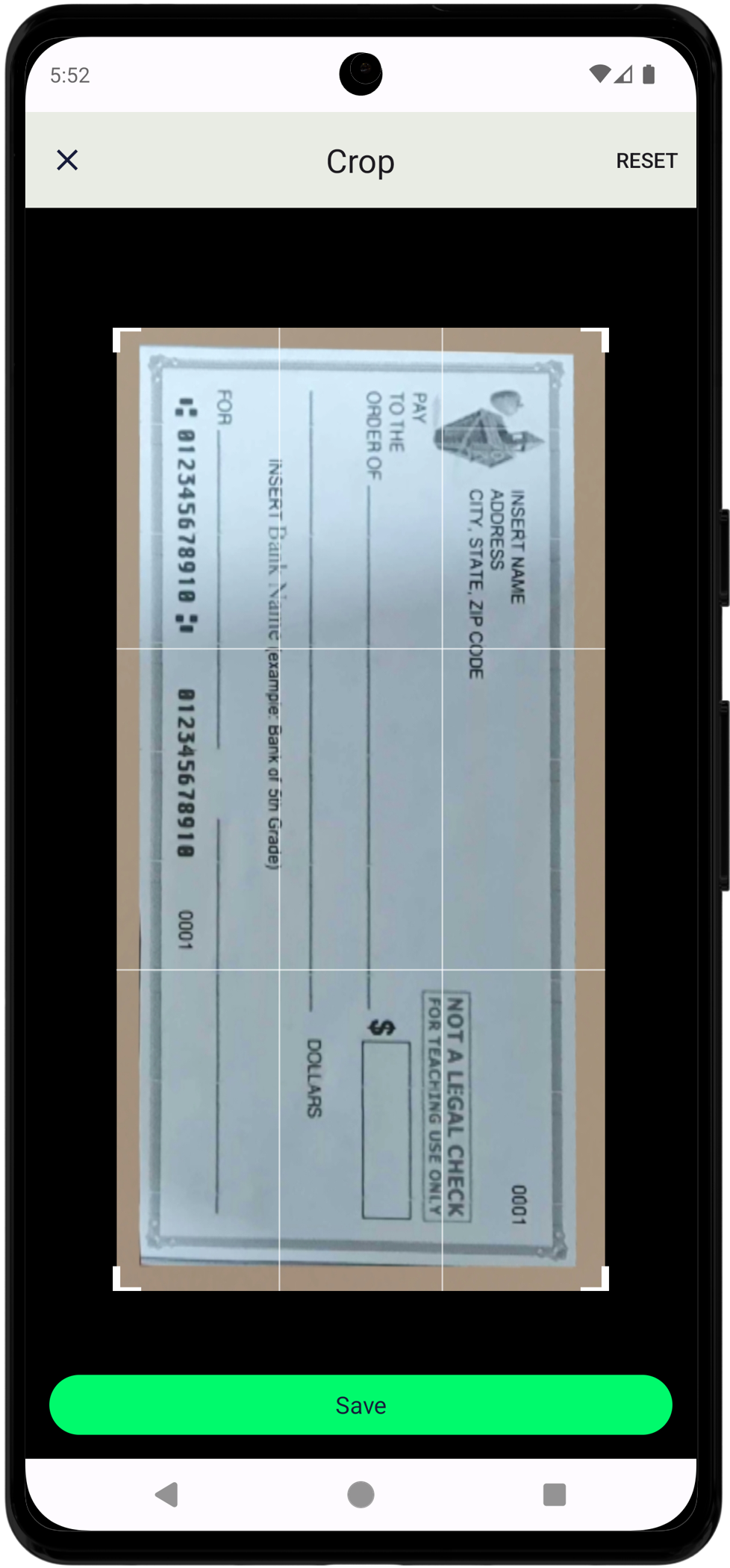
moreMenuIsOn: Disabled to prevent users from changing critical settingsautoSelectManualCropIsOn: Automatically enters crop mode for better control on the manual crop screen (accessible from the submit preview screen)
Complete Recommended Configuration
Here's the complete JSON configuration for X9-compliant check processing:
{
  "documentTypes": ["check"],
  "showDocumentTypes": true,
  "dataExtractionEngine": "api",

  "validateCheckSize": true,
  "validateCheckSides": true,
  "validateCheckCorners": true,
  "allowSubmitUndetectedDocsIsOn": false,
  "allowSubmitBlurredDocsIsOn": false,

  "checksBackIsOn": true,
  "checksBackIsRequired": false,
  "checkSequenceMode": true,
  "checksCropMargin": 5,
  "checksMinAspectRatio": 1.9,
  "checksMaxAspectRatio": 2.85,

  "forceLandscapeImage": true,
  "multipleDocumentsIsOn": false,
  "autoRotateIsOn": false,
  "autoSkewCorrectionIsOn": false,
  "blurDetectionIsOn": true,
  "gpuIsOn": true,

  "cropLayoutWidth": 60,
  "cropLayoutAspectRatio": 2.18,
  "cropLayoutCornerRadius": 5,
  "cropLayoutOverlayAlpha": 0.3,
  "cropLayoutShowDelay": 8.0,
  "forceCropLayoutOnRetake": true,

  "autoCaptureIsOn": false,
  "captureMarginRatio": 0.08,
  "returnStitchedPDF": true,
  "saveLogsIsOn": true,

  "moreMenuIsOn": false,
  "autoSelectManualCropIsOn": true,
  "backupDocsToGallery": false,
  "galleryIsOn": false
}
Note: For details on all VeryfiLens settings not specific to checks (including UI customization and general purpose use cases), see: https://docs.veryfi.com/lens/mobile/settings/
Implementation
Complete Example: ViewController
import UIKit
import VeryfiLens

class CheckScanViewController: UIViewController, VeryfiLensDelegate {

    override func viewDidLoad() {
        super.viewDidLoad()
        setupVeryfiLens()
    }

    private func setupVeryfiLens() {
        // Configure credentials
        let CLIENT_ID = "YOUR_CLIENT_ID"
        let AUTH_USERNAME = "YOUR_USERNAME"
        let AUTH_APIKEY = "YOUR_API_KEY"
        let URL = "YOUR_URL"

        let veryfiLensCredentials = VeryfiLensCredentials(
            clientId: CLIENT_ID,
            username: AUTH_USERNAME,
            apiKey: AUTH_APIKEY,
            url: URL
        )

        // Configure settings using predefined checks settings
        let veryfiLensSettings = VeryfiLensChecksSettings()

        // Set delegate and configure
        VeryfiLens.shared().delegate = self
        VeryfiLens.shared().configure(
            with: veryfiLensCredentials,
            settings: veryfiLensSettings
        ) { success in
            if success {
                print("Veryfi Lens for Checks configured successfully")
            } else {
                print("Configuration failed")
            }
        }
    }

    @IBAction func scanCheck(_ sender: Any) {
        VeryfiLens.shared().showCamera(in: self)
    }

    // MARK: - VeryfiLensDelegate

    func veryfiLensClose(_ json: [String : Any]) {
        print("Lens closed: \(json)")
        if let scanCount = json["session_scan_count"] as? Int {
            print("Scans in session: \(scanCount)")
        }
    }

    func veryfiLensError(_ json: [String : Any]) {
        print("Lens error: \(json)")
        if let error = json["error"] as? String {
            print("Error: \(error)")
        }
        if let msg = json["msg"] as? String {
            print("Message: \(msg)")
        }
    }

    func veryfiLensSuccess(_ json: [String : Any]) {
        print("Lens success: \(json)")

        // Extract check data
        if let data = json["data"] as? [String: Any] {
            // Process check data
            processCheckData(data)
        }
    }

    func veryfiLensUpdate(_ json: [String : Any]) {
        print("Lens update: \(json)")

        if let status = json["status"] as? String {
            switch status {
            case "start":
                print("Upload started")
            case "update":
                if let msg = json["msg"] as? String {
                    if msg == "img_thumbnail_path" {
                        print("Thumbnail available")
                    } else if let progress = json["progress"] as? Double {
                        print("Upload progress: \(Int(progress * 100))%")
                    }
                }
            default:
                break
            }
        }
    }

    private func processCheckData(_ data: [String: Any]) {
        // Extract check fields
        let checkNumber = data["check_number"] as? String
        let amount = data["amount"] as? Double
        let payerName = data["payer_name"] as? String
        let bankName = data["bank_name"] as? String
        let routingNumber = data["check_account_routing"] as? String
        let date = data["date"] as? String

        // Process extracted check data
        // Send to your backend, save to database, etc.
    }
}
Response Handling
Success Response Structure
When a check is successfully processed, veryfiLensSuccess receives a JSON object with the following structure:
{
  "status": "success",
  "package_id": "unique-package-id",
  "document_type": "check",
  "data": {
    "check_number": "1234",
    "amount": 100.50,
    "amount_text": "One hundred and 50/100",
    "payer_name": "John Doe",
    "payer_address": "123 Main St, City, State 12345",
    "receiver_name": "Jane Smith",
    "receiver_address": "456 Oak Ave, City, State 67890",
    "bank_name": "Example Bank",
    "bank_address": "789 Bank St, City, State 11111",
    "fractional_routing_number": "12-3456/7890",
    "check_account_routing": "123456789",
    "date": "2024-01-15",
    "memo": "Payment for services",
    "pdf_url": "https://..."
  }
}
Error Response Structure
When an error occurs, veryfiLensError receives:
{
  "status": "error",
  "error": "Error type",
  "msg": "Error message",
  "package_id": "unique-package-id"
}
Update Response Structure
During processing, veryfiLensUpdate receives multiple updates:
{
  "status": "update",
  "msg": "img_thumbnail_path",
  "package_id": "unique-package-id",
  "data": "/path/to/thumbnail.jpg"
}
{
  "status": "update",
  "msg": "upload_progress",
  "package_id": "unique-package-id",
  "progress": 0.75
}
Close Response Structure
When camera closes, veryfiLensClose receives:
{
  "status": "close",
  "session_scan_count": 2,
  "msg": "camera_closed"
}
Best Practices
1. X9 Compliance Checklist
To ensure checks meet X9 standards:
- ✅ Enable all validation settings (
validateCheckSize,validateCheckSides,validateCheckCorners) - ✅ Set
allowSubmitUndetectedDocsIsOntofalse - ✅ Use appropriate
checksCropMargin(5 is recommended) - ✅ Ensure
checksMinAspectRatioandchecksMaxAspectRatioare set correctly - ✅ Enable
blurDetectionIsOnto prevent blurry submissions - ✅ Disable
autoRotateIsOnandautoSkewCorrectionIsOnto preserve check geometry - ✅ Use crop layout set of settings to guide users for proper positioning
Additional Resources
Support
For technical support or questions:
- Contact your Veryfi account manager
- Visit Veryfi Support
- Check Veryfi Documentation
Table of Contents
- Prerequisites
- Obtaining Credentials
- Installation
- SDK Initialization
- Recommended Settings for X9 Compliance
- Best Practices
Prerequisites
Before starting the integration, ensure you have:
- API credentials and Maven credentials (more info: https://docs.veryfi.com/lens/mobile/introduction/authentication/)
- Kotlin or Java project with Gradle 8 and Java 17 minimum
- Minimum Android SDK 6.0 (API Level 23)
Obtaining Credentials
You need two sets of credentials:
- Maven credentials to download the SDK (Maven username and password)
- Access credentials to access to the Veryfi API (Client ID, API key, username, URL)
1. Maven Credentials
If you don't have an account with Veryfi, please register here: https://app.veryfi.com/signup/api/
In the Veryfi hub, go to
Settings>Keys:- In the
API Auth Credentialssection, you can get your API credentials. - In the
Lens: Maven (Android)section you can create your Maven credentials.
- In the
Add your Maven credentials to your system environment (e.g.,
~/.zshrc). Replace[MAVEN_USERNAME]and[MAVEN_PASSWORD]with the credentials obtained in the previous step.export MAVEN_VERYFI_USERNAME=[USERNAME]
export MAVEN_VERYFI_PASSWORD=[PASSWORD]To check if the credentials are correct, run the next command in the terminal:
curl -sS --head https://$MAVEN_VERYFI_USERNAME:[email protected]/repository/maven-public/com/veryfi/lens/veryfi-lens-sdk/2.1.0.51/veryfi-lens-sdk-2.1.0.51.pom | grep "HTTP/2"
If prints
HTTP/2 200, then the credentials are validbut if it is
HTTP/2 401, the credentials are not valid. Please double check the environment variables, or create new credentials in the Veryfi hubKeyspage. To check the environment variables' values, run the next command to print them in the terminal:echo $MAVEN_VERYFI_USERNAME
echo $MAVEN_VERYFI_PASSWORD
2. API Credentials
To configure the SDK, you need API credentials:
- In the Veryfi Hub, go to Settings → Keys
- In the API Auth Credentials section, you'll find:
- Client ID: Unique identifier for your application
- Username: Your account username
- API Key: Authentication key for API access
- Environment URL: API endpoint (e.g.,
api.veryfi.comordevapi.veryfi.com)
⚠️ Security Note: Never commit these credentials to version control. Store them securely using environment variables, Keychain, or secure configuration files.
Installation
- To install the Veryfi Lens SDK for Android, you need to modify the next files:
- Add the Veryfi Maven repository at https://nexus.veryfi.com/repository/maven-releases/ to
settings.gradleand use the environment variablesMAVEN_VERYFI_USERNAMEandMAVEN_VERYFI_PASSWORDfor authentication. - Modify the
<application>tag attributes inAndroidManifest.xml
- Register the private Maven repository in the project-level
settings.gradleorsettings.gradle.kts:
- settings.gradle (Groovy DSL)
- settings.gradle.kts (Kotlin DSL)
dependencyResolutionManagement {
    repositories {
        maven {
            url "https://nexus.veryfi.com/repository/maven-releases/"
            credentials {
                username = System.getenv("MAVEN_VERYFI_USERNAME")
                password = System.getenv("MAVEN_VERYFI_PASSWORD")
            }
            authentication {
                basic(BasicAuthentication)
            }
        }
    }
}
dependencyResolutionManagement {
    repositoriesMode.set(RepositoriesMode.FAIL_ON_PROJECT_REPOS)
    repositories {
        maven {
            url = uri("https://nexus.veryfi.com/repository/maven-releases/")
            credentials {
                username = System.getenv("MAVEN_VERYFI_USERNAME")
                password = System.getenv("MAVEN_VERYFI_PASSWORD")
            }
            authentication {
                create<BasicAuthentication>("basic")
            }
        }
    }
}
- Add the dependencies. Replace VERYFI_SDK_VERSION with the latest version (Versions and release notes: https://github.com/veryfi/veryfi-lens-receipts-android-demo/releases):
- app/build.gradle (Groovy DSL)
- app/build.gradle.kts (Kotlin DSL)
dependencies {
    implementation "com.veryfi.lens:veryfi-lens-sdk:VERYFI_SDK_VERSION"
}
dependencies {
    implementation("com.veryfi.lens:veryfi-lens-sdk:VERYFI_SDK_VERSION")
}
- If your
AndroidManifest.xmlhasandroid:allowBackuptag, add the namespacetoolsto the manifest, and include the following settings to the<application>tag:
<manifest xmlns:android="http://schemas.android.com/apk/res/android"
          xmlns:tools="http://schemas.android.com/tools">
    <application
        tools:ignore="AllowBackup,GoogleAppIndexingWarning"
        tools:replace="android:allowBackup">
    </application>
</manifest>
- Finally, if you are using Android Studio, select
File->Sync Project with Gradle Filesto download the depedencies and refresh the internal project model.
SDK Initialization
- Import required classes from Lens SDK:
import com.veryfi.lens.VeryfiLens
import com.veryfi.lens.VeryfiLensDelegate
import com.veryfi.lens.helpers.DocumentType
import com.veryfi.lens.helpers.VeryfiLensCredentials
import com.veryfi.lens.helpers.VeryfiLensSettings
- Configure your authentication credentials. Replace
CLIENT_ID,USERNAME,API_KEYandURLwith theAPI Auth Credentialsfrom the step 1:
val credentials = VeryfiLensCredentials().apply {
    clientId = "CLIENT_ID" // Replace with your Client ID
    username = "USERNAME" // Replace with your Username
    apiKey = "API_KEY" // Replace with your API Key
    url = "URL" // Replace with your Endpoint URL (e.g., api.veryfi.com)
}
- Configure your Veryfi Lens settings for Checks (Settings documentation: https://docs.veryfi.com/lens/mobile/settings/)
val settings = VeryfiLensSettings().apply {
    documentTypes = arrayListOf(DocumentType.CHECK)
    galleryIsOn = false
    moreMenuIsOn = false
    // ... configure additional settings (see Recommended Settings section)
}
- Implement the
VeryfiLensDelegateinterface to handle the events triggered by Veryfi Lens:
class MyActivity : VeryfiLensDelegate {
    override fun veryfiLensClose(json: JSONObject) { /* handle */ }
    override fun veryfiLensError(json: JSONObject) { /* handle */ }
    override fun veryfiLensSuccess(json: JSONObject) { /* handle */ }
    override fun veryfiLensUpdate(json: JSONObject) { /* handle */ }
}
- Register the delegate:
VeryfiLens.setDelegate(this)
- Initialize the SDK with the credentials, settings and the
Applicationinstance:
VeryfiLens.configure(application, credentials, settings) { }
- Launch the Lens camera:
VeryfiLens.showCamera()
Recommended Settings for X9 Compliance
The following settings are critical for ensuring checks meet X9 banking standards and prevent rejection by banking partners:
Critical Validation Settings
These settings enforce strict validation to meet X9 standards:
{
  "validateCheckSize": true,
  "validateCheckSides": true,
  "validateCheckCorners": true,
  "allowSubmitUndetectedDocsIsOn": false,
  "captureMarginRatio": 0.08
}
Purpose:
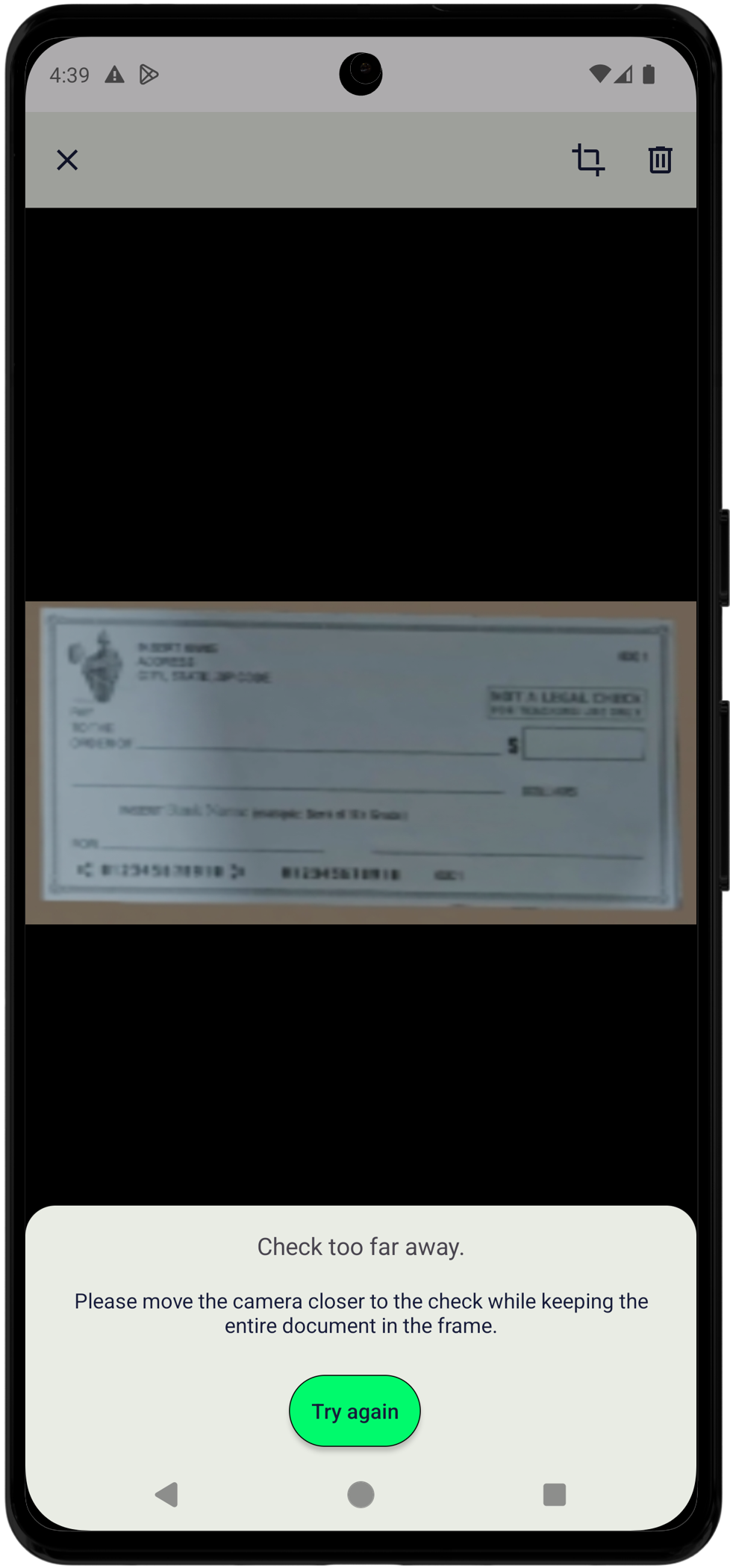
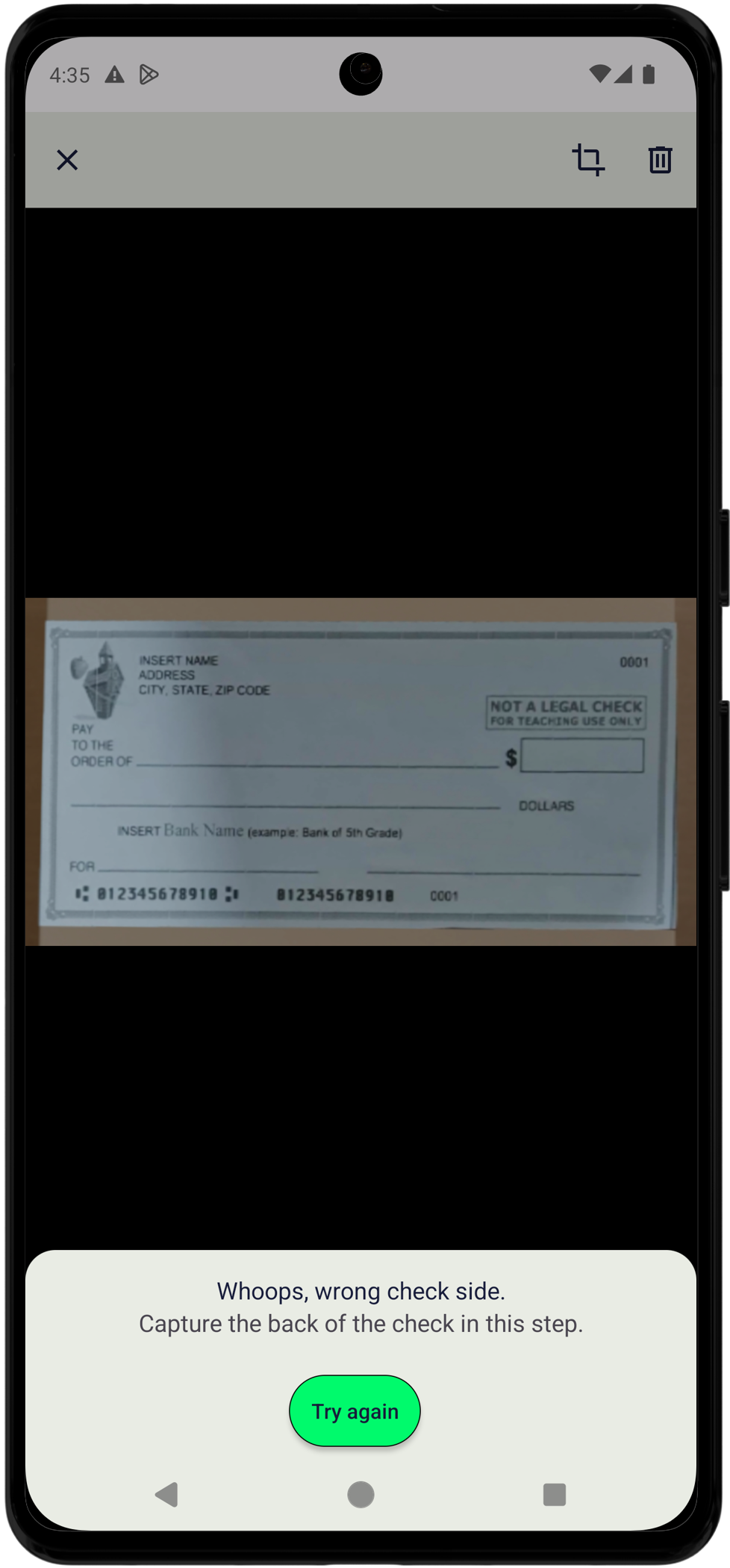
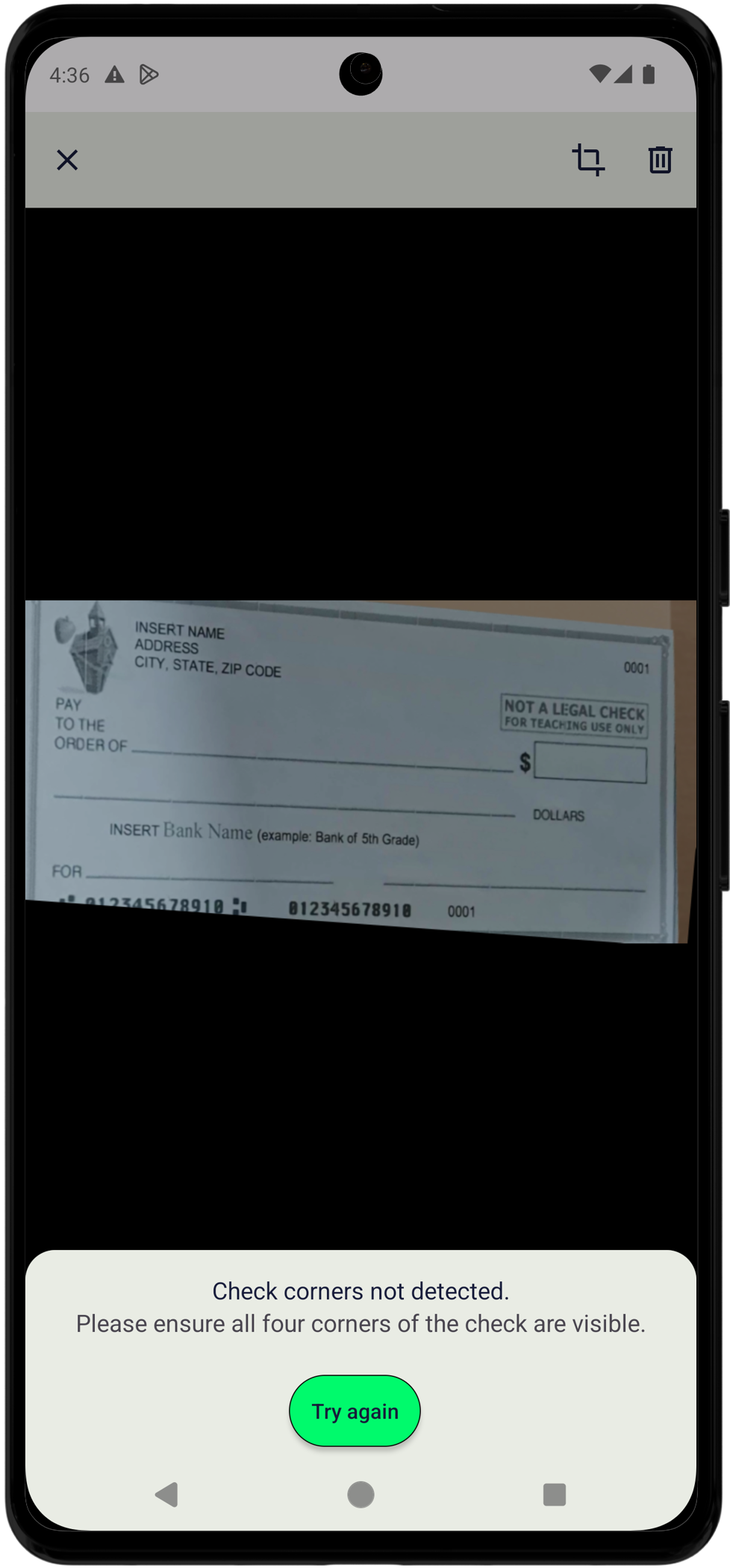
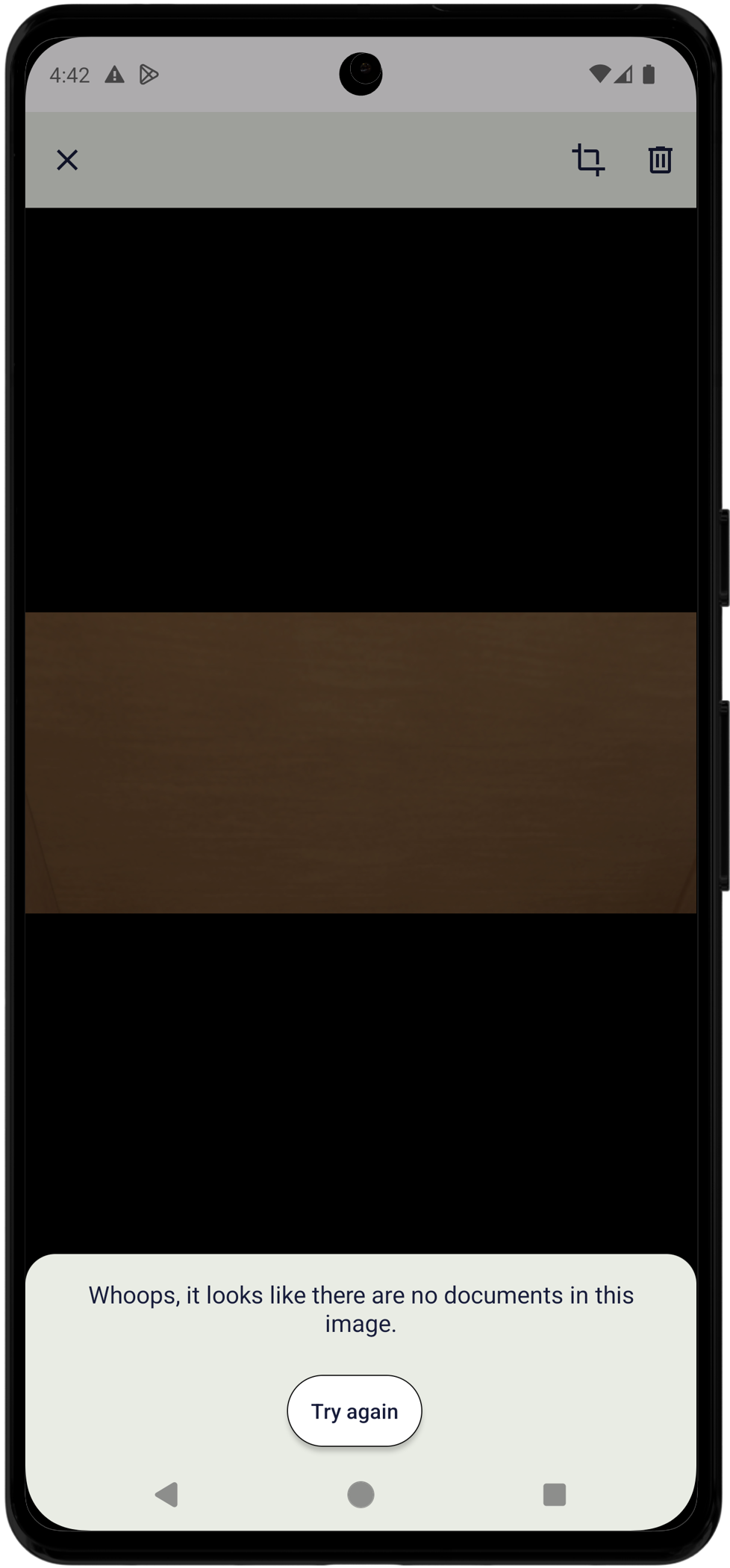
validateCheckSize: Ensures check dimensions meet minimum requirements (at least 820px width or 351px height)validateCheckSides: Validates that the correct side (front/back) is being capturedvalidateCheckCorners: Ensures all four corners of the check are visible and detectedallowSubmitUndetectedDocsIsOn: Prevents submission of images that don't contain a valid checkcaptureMarginRatio: Ensures check is properly positioned with margin; this setting is tied tovalidateCheckCorners
- validateCheckSize
- validateCheckSides
- validateCheckCorners
- allowSubmitUndetectedDocsIsOn
Check-Specific Settings
{
  "documentTypes": ["check"],
  "showDocumentTypes": true,
  "checksBackIsOn": true,
  "checkSequenceMode": true,
  "checksCropMargin": 5,
  "forceLandscapeImage": true,
  "multipleDocumentsIsOn": false
}
Purpose:
checksBackIsOn: Enables capture of check back side after front sidecheckSequenceMode: Provides alternative UX for sequential front/back scanning (recommended)checksCropMargin: Sets margin around cropped checks (0-10, default: 5)forceLandscapeImage: Forces horizontal preview orientation for checksmultipleDocumentsIsOn: When enabled, this setting will send multiple images as different transactions
Note: checksBackIsOn and checksBackIsRequired are implicit in checkSequenceMode, so they are not relevant when the latter is enabled.
- checksBackIsOn
- checksBackIsRequired
- checksCropMargin
- forceLandscapeImage
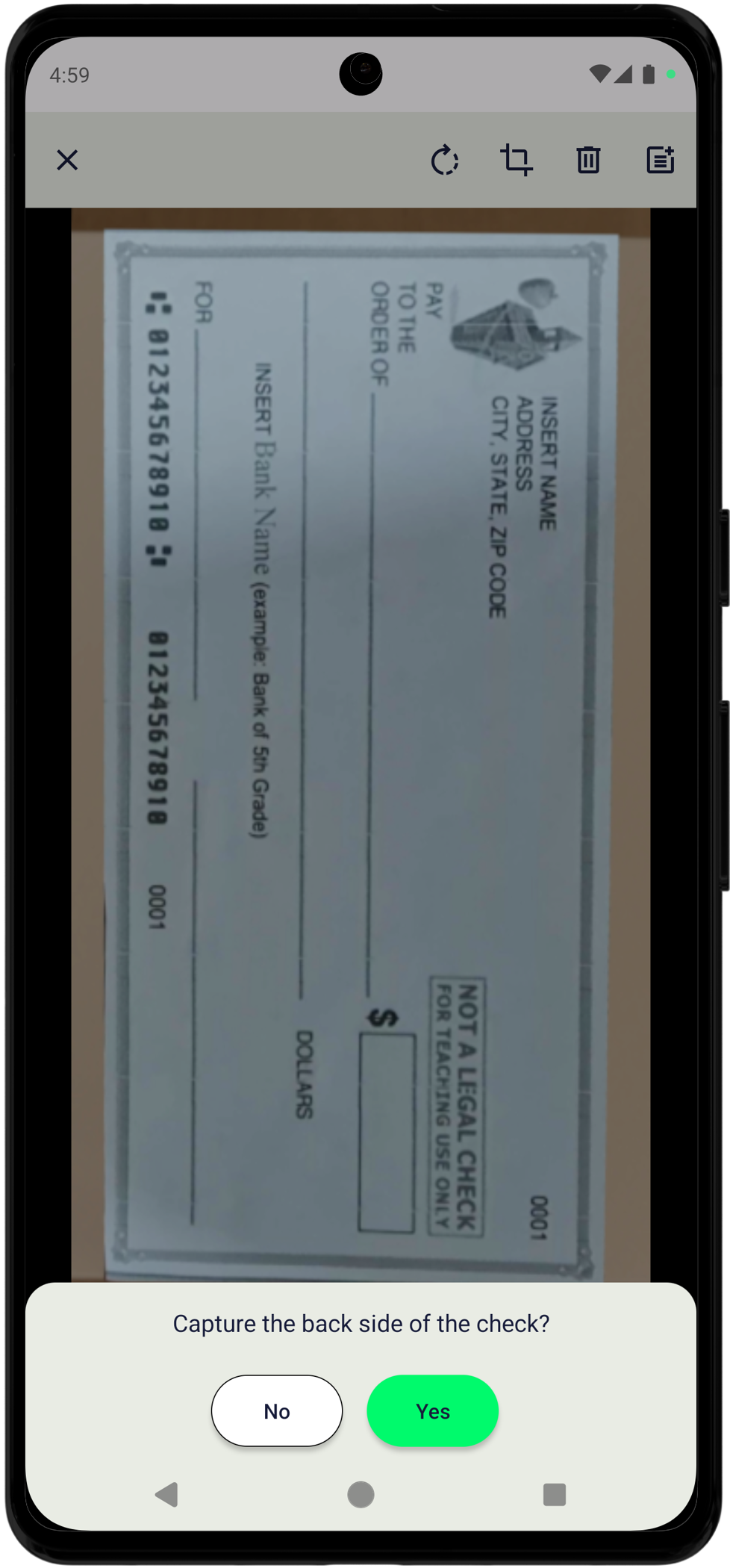
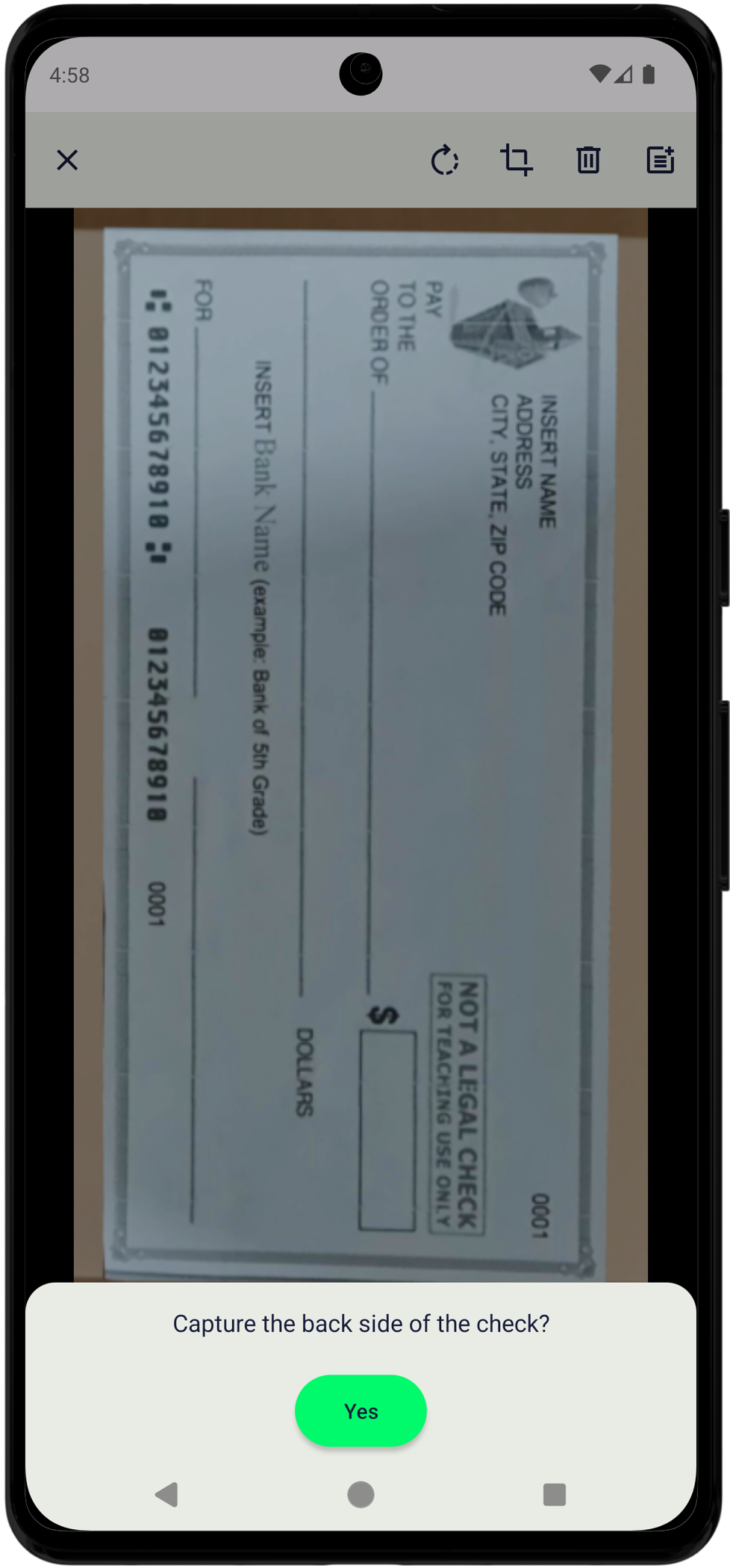
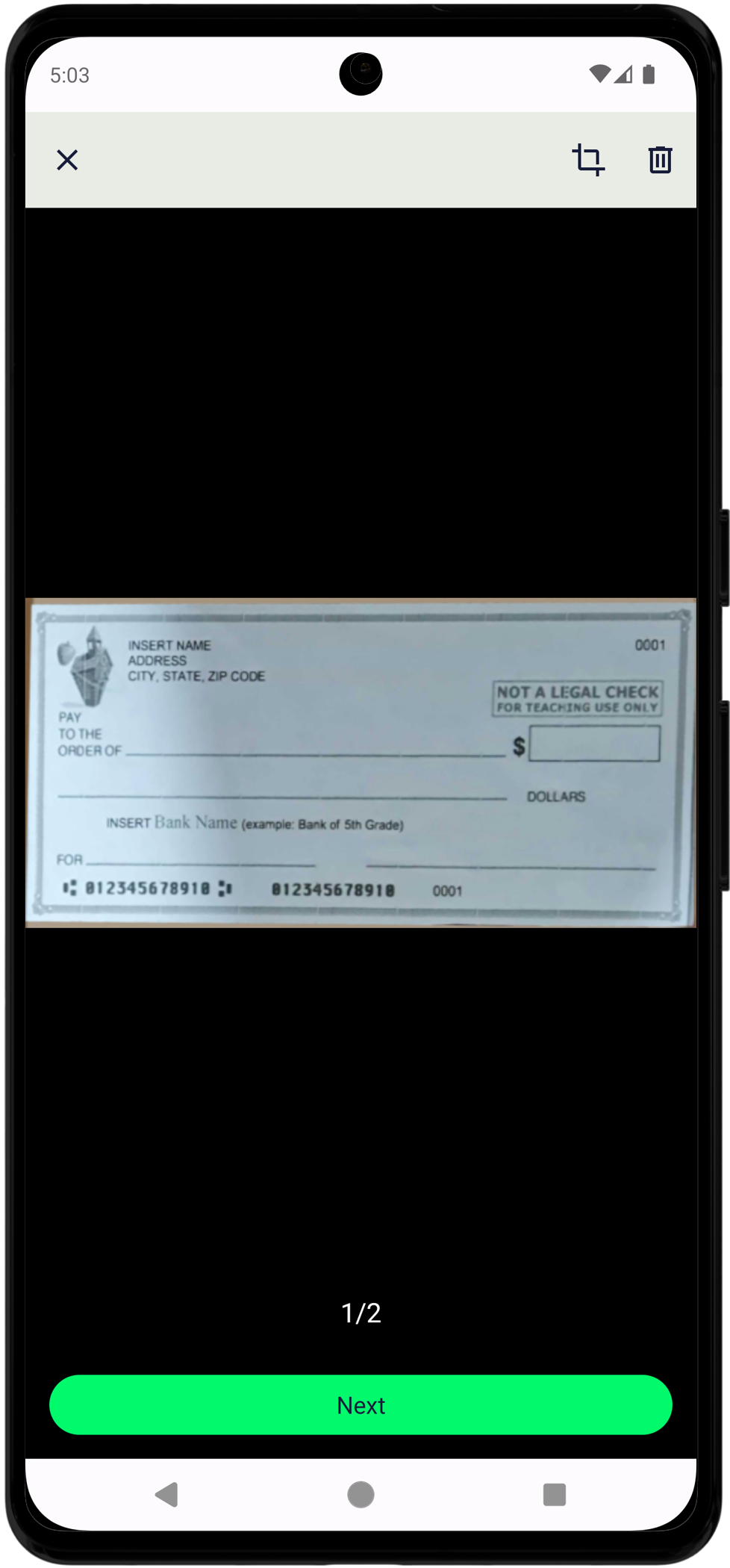
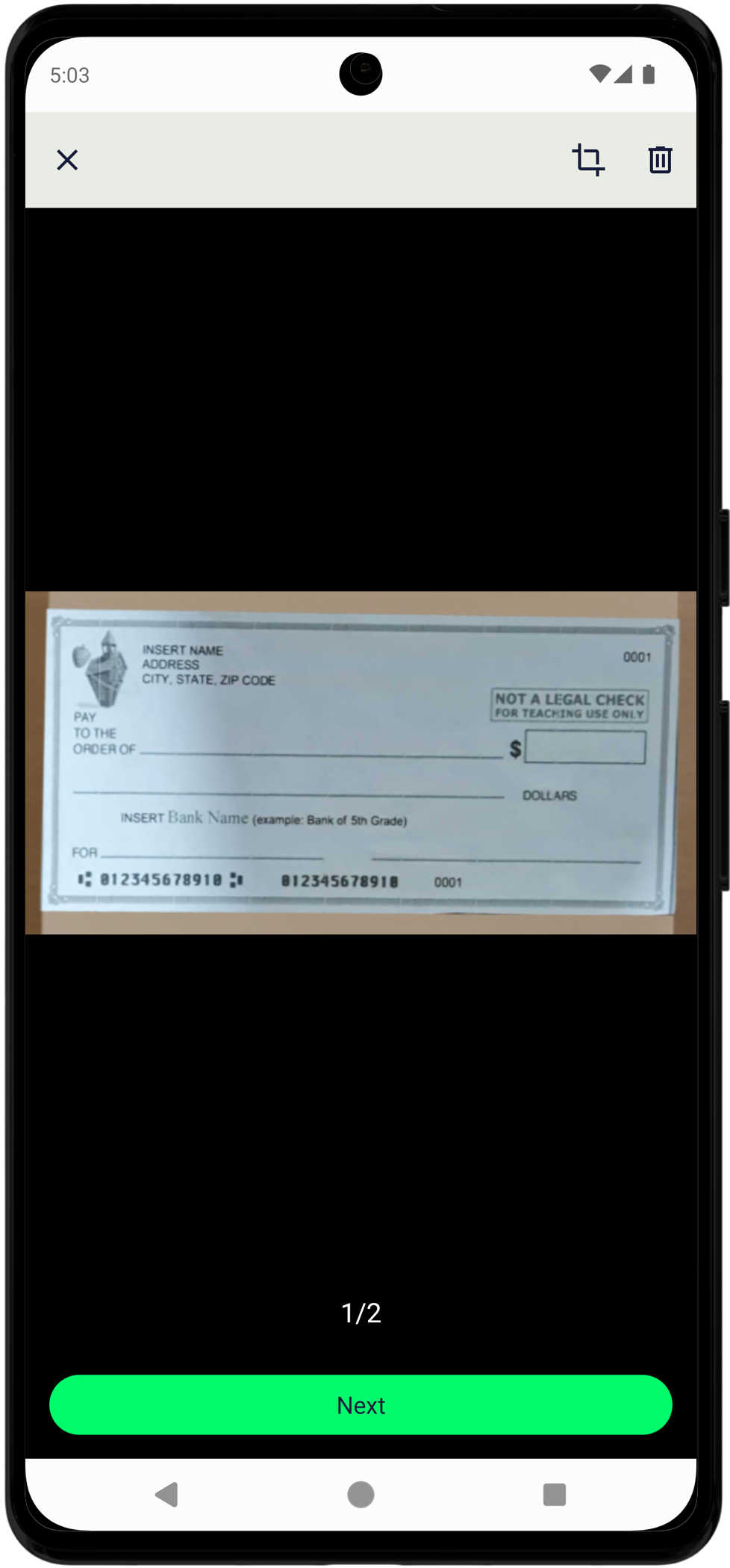
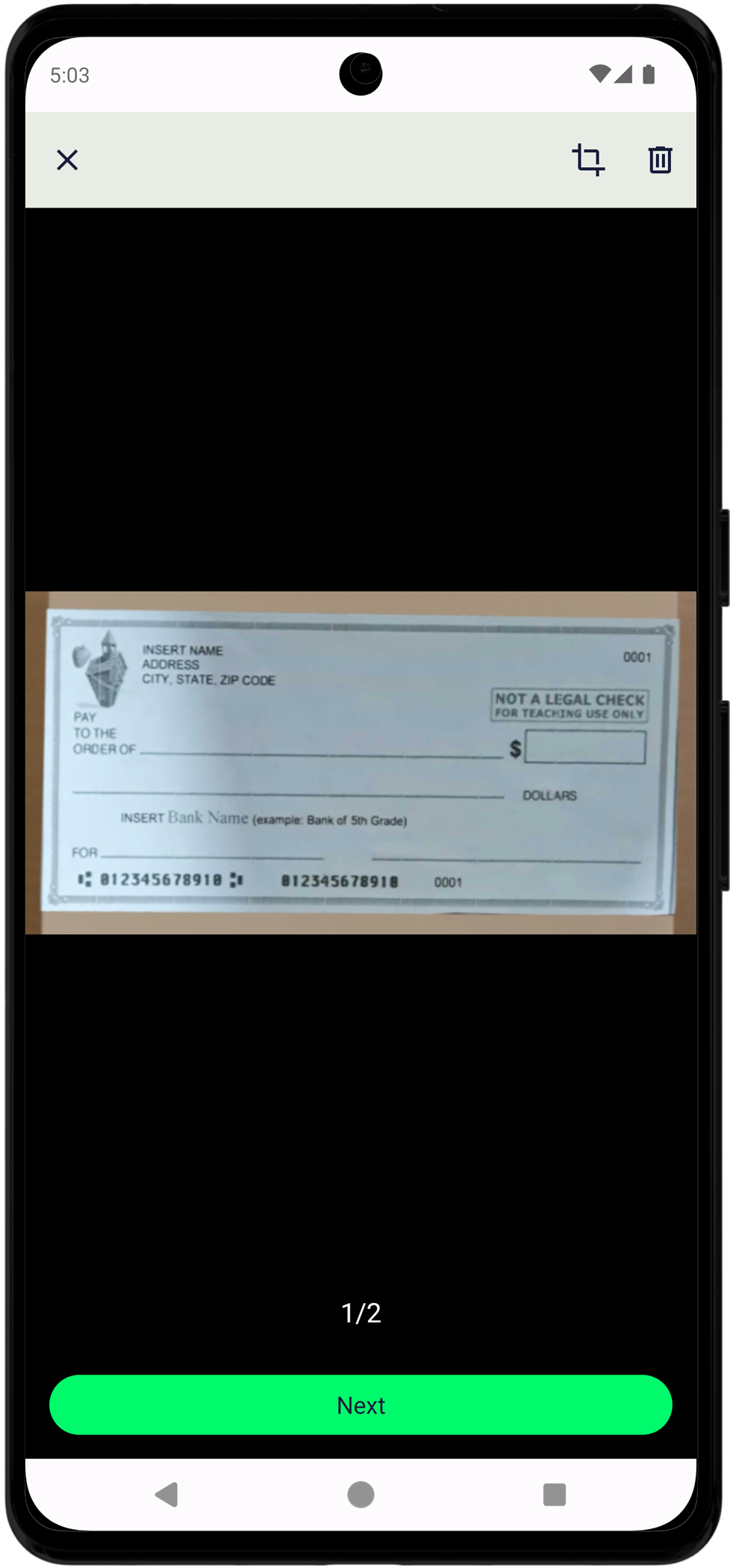
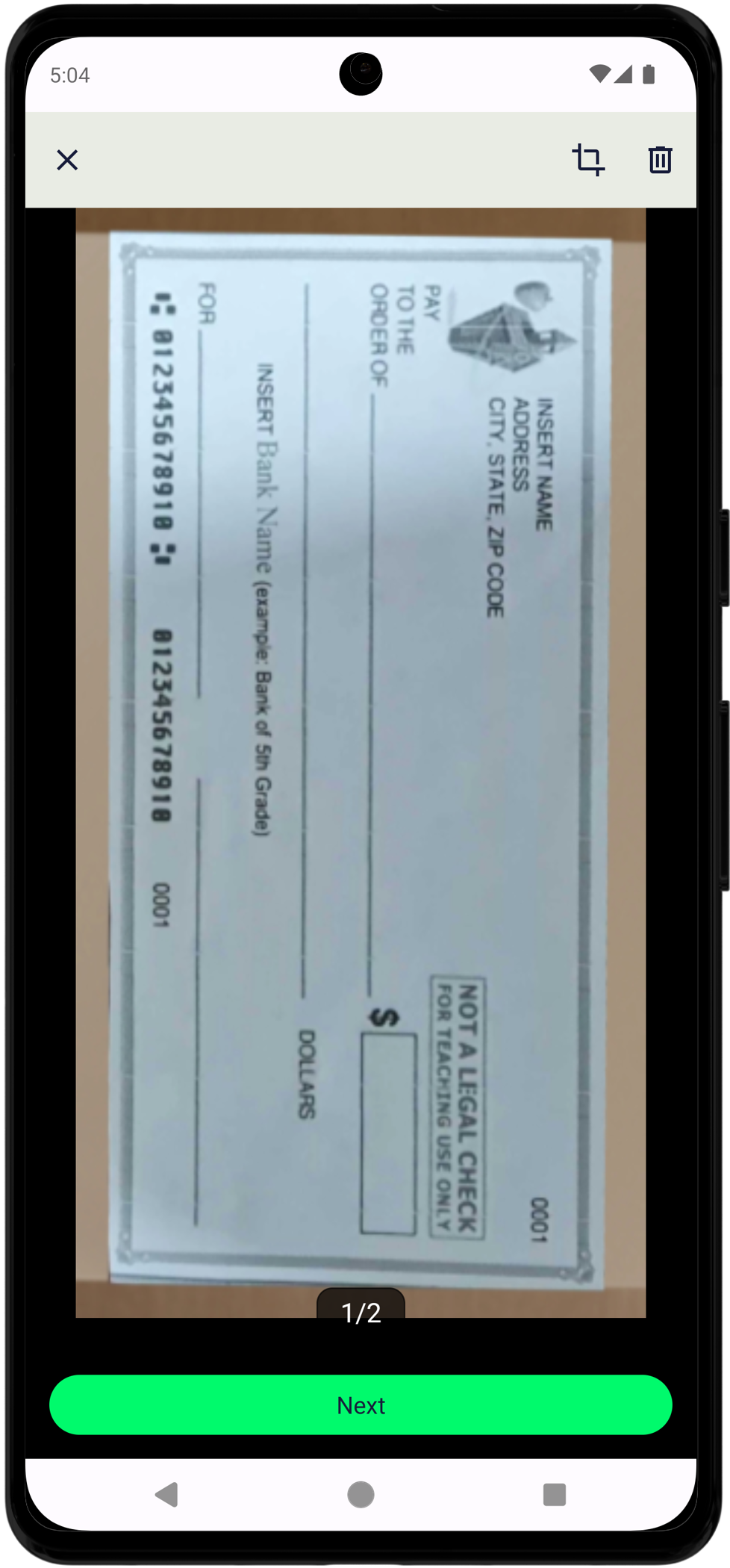
Image Quality Settings
{
  "autoRotateIsOn": false,
  "autoSkewCorrectionIsOn": false,
  "blurDetectionIsOn": true,
  "allowSubmitBlurredDocsIsOn": false,
  "glareDetectionIsOn": false,
  "showLCDIsNotAllowed": true,
  "fraudDetectionIsOn": true,
  "gpuIsOn": true
}
Purpose:
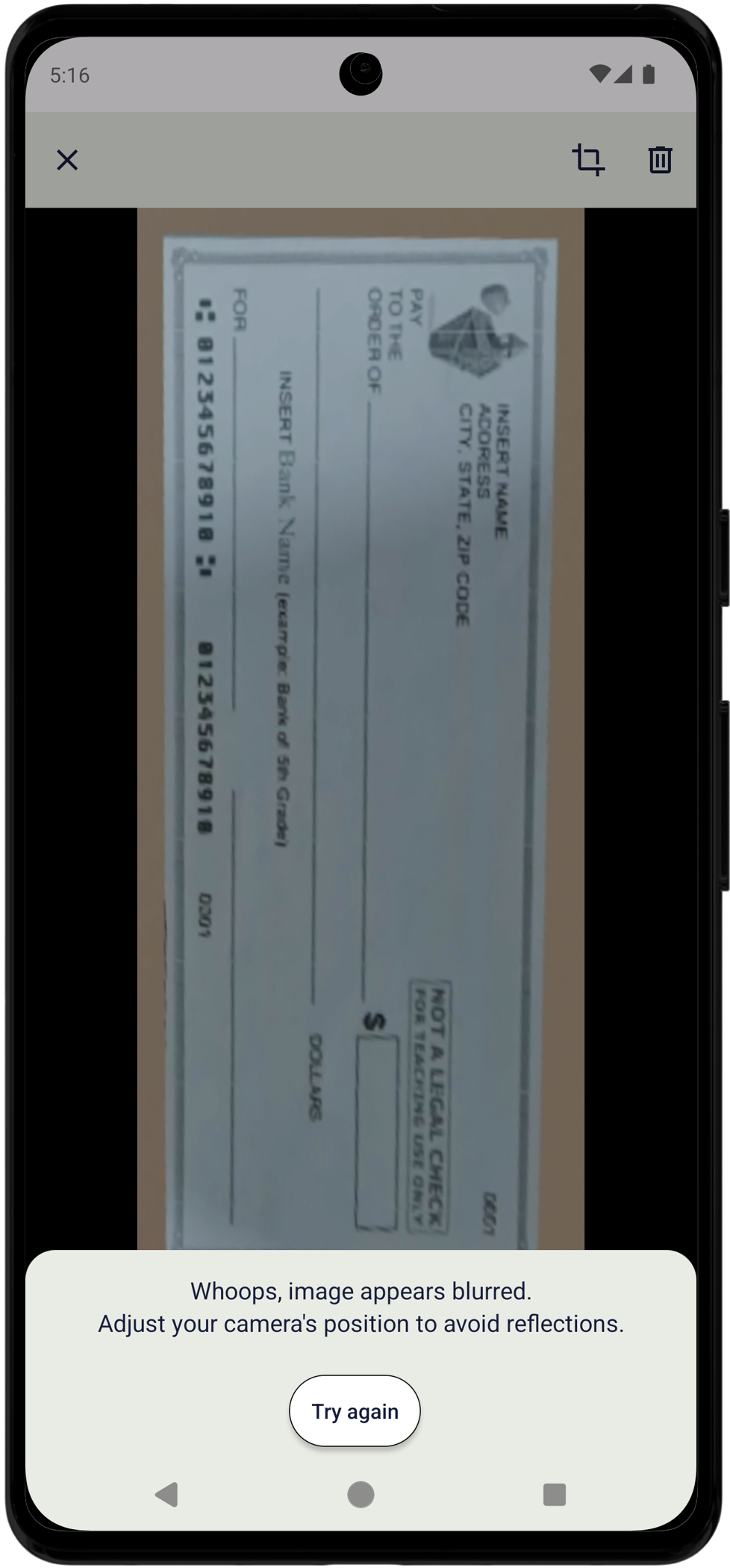
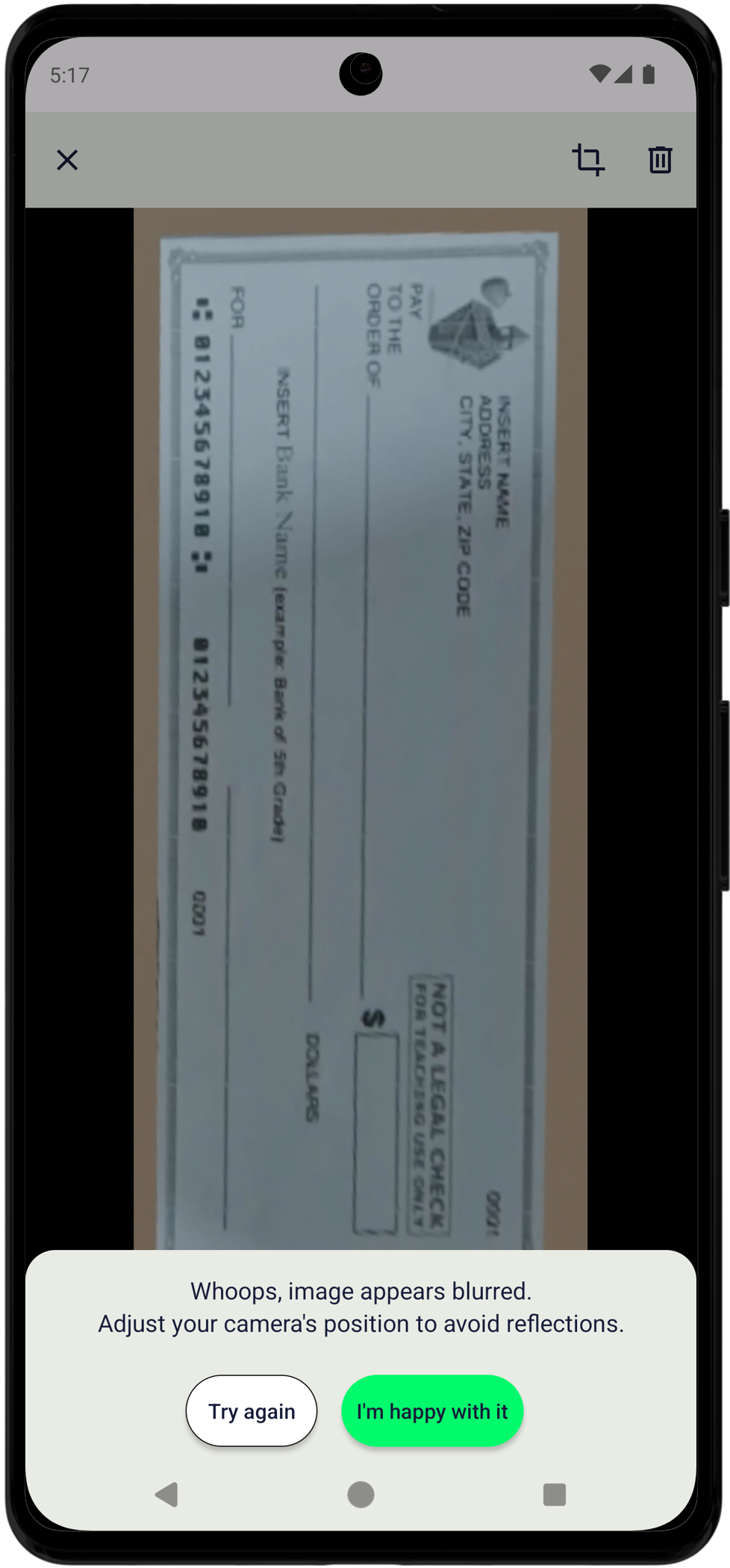
autoRotateIsOn: Disabled to preserve original check orientationautoSkewCorrectionIsOn: Disabled to maintain check geometryblurDetectionIsOn: Enabled to ensure image clarityallowSubmitBlurredDocsIsOn: Enforces a hard check on blurred images at the submit preview screenfraudDetectionIsOn: Requires the feature to be enabled in your account configuration; checks whether the capture is from an LCD screengpuIsOn: Enabled for faster processing (useful to disable on older devices, but all actively supported iPhone devices handle this without issues)
Note: If preventing LCD screen captures is important for your use case, the showLCDIsNotAllowed setting will add a hard check to prevent submitting those types of captures.
- blurDetectionIsOn
- allowSubmitBlurredDocsIsOn
- fraudDetectionIsOn
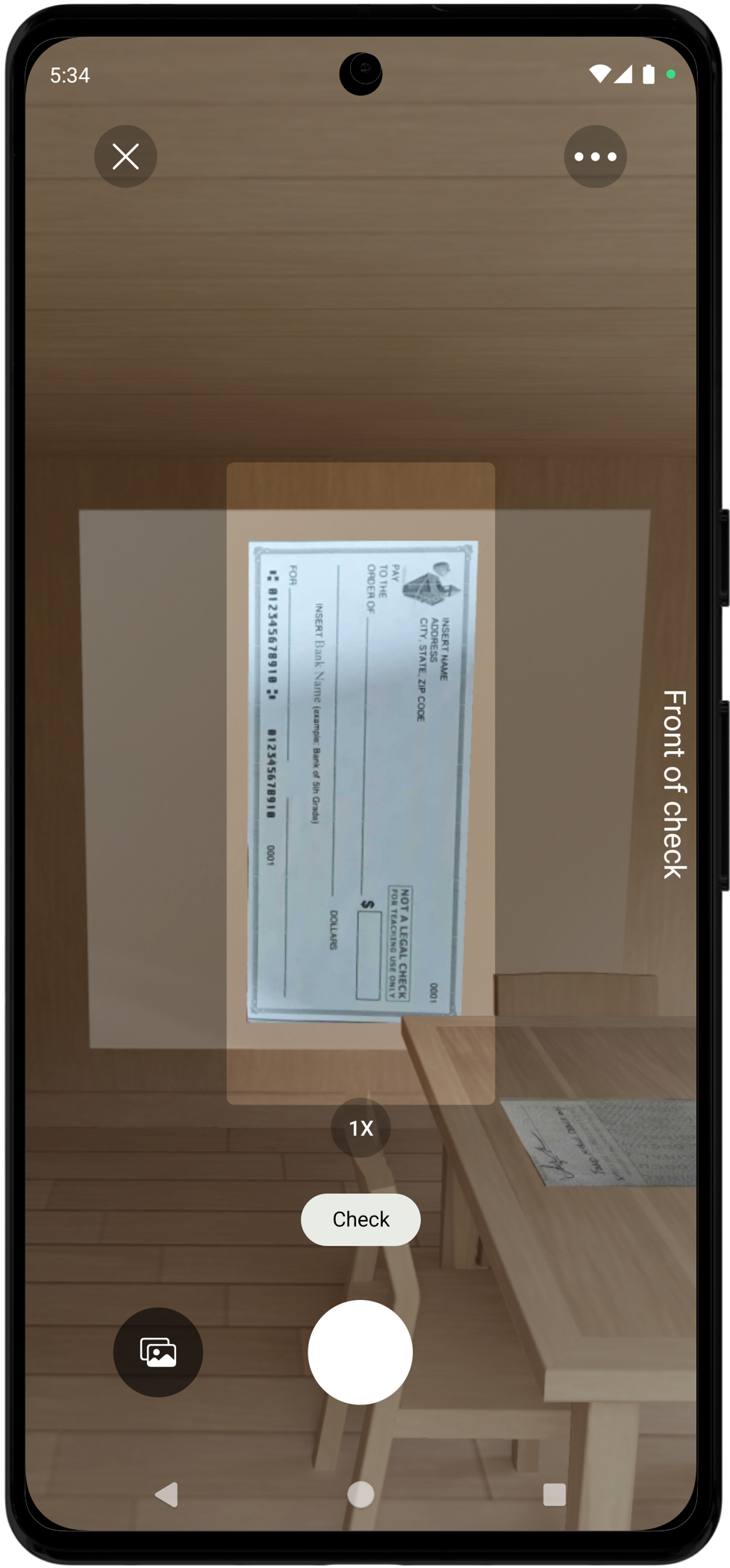
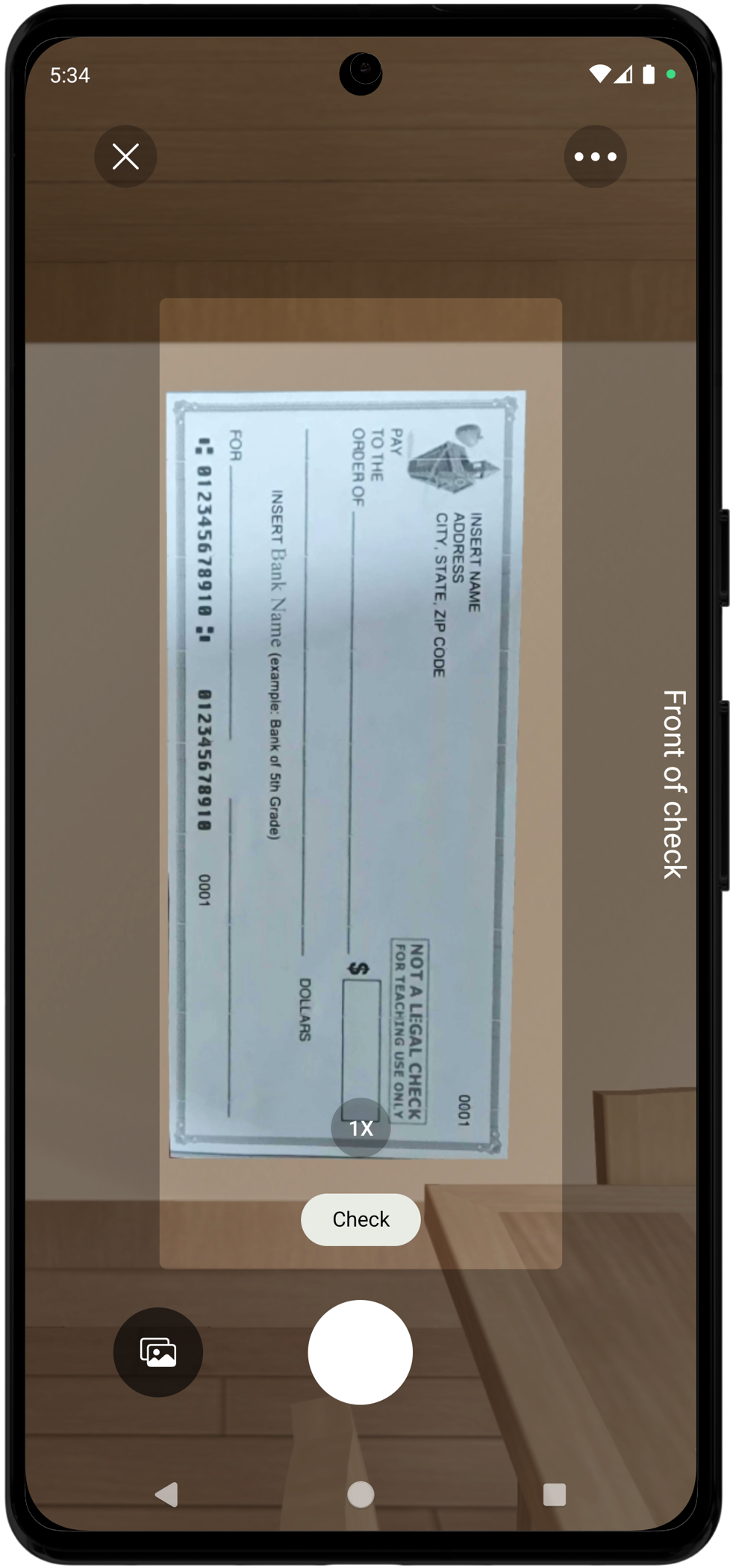
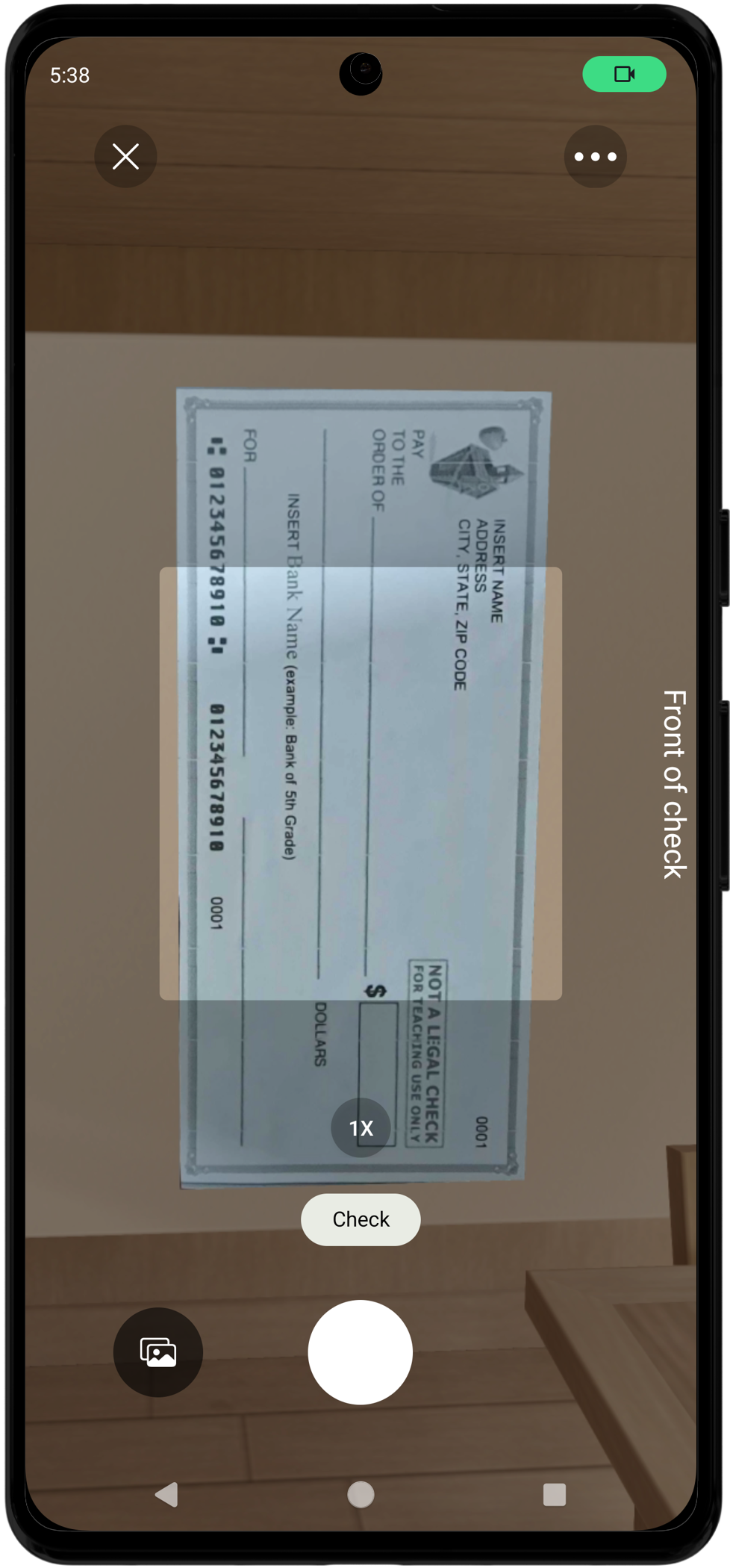
Crop Layout Settings (Visual Guide)
{
  "cropLayoutWidth": 60,
  "cropLayoutAspectRatio": 2.18,
  "cropLayoutCornerRadius": 5,
  "cropLayoutOverlayAlpha": 0.3,
  "cropLayoutShowDelay": 8.0,
  "forceCropLayoutOnRetake": true,
  "checksMinAspectRatio": 1.9,
  "checksMaxAspectRatio": 2.85
}
Purpose:
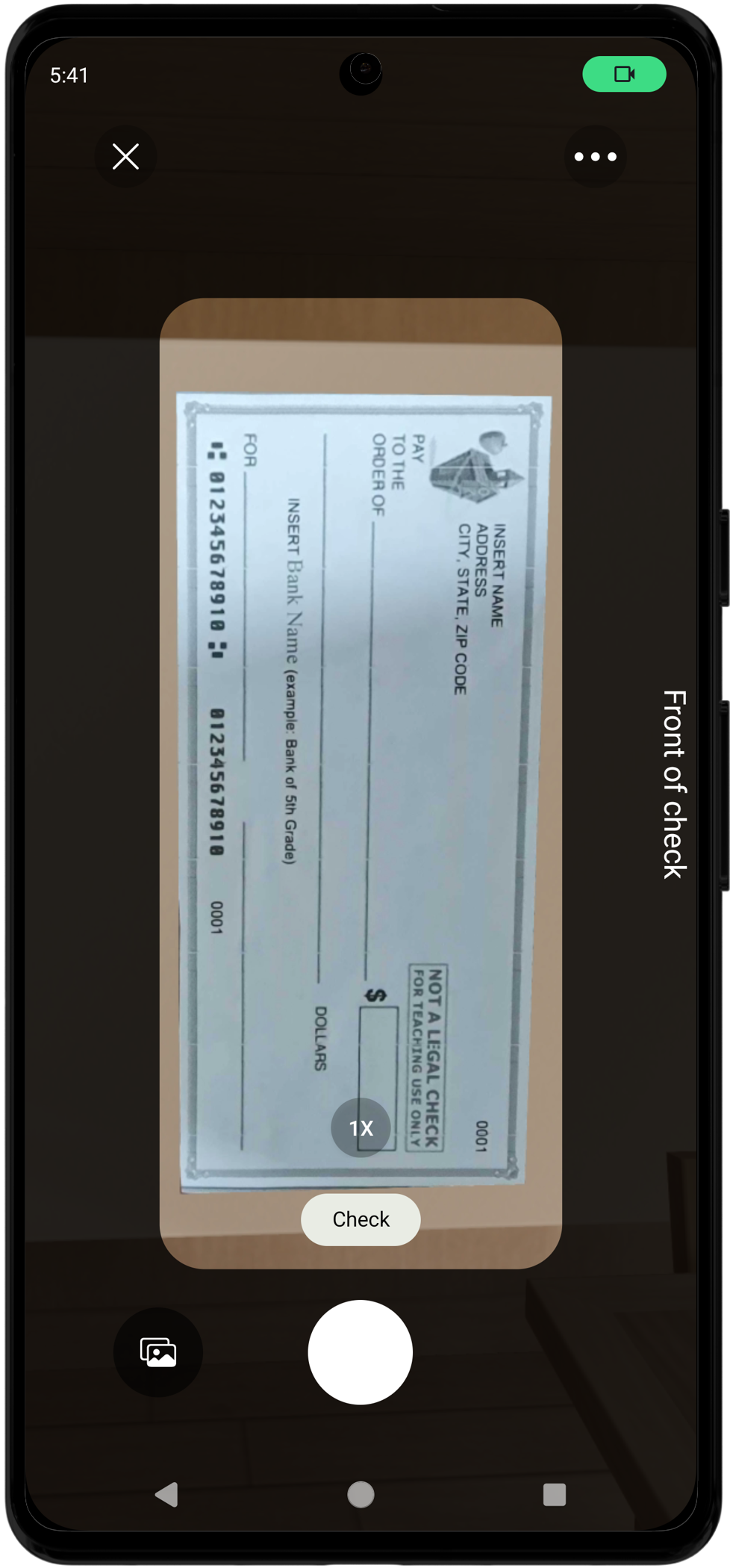
- Provides visual guide for proper check positioning
cropLayoutAspectRatio: Matches standard check aspect ratio (2.18:1)checksMinAspectRatio/checksMaxAspectRatio: Validates check proportions
- cropLayoutWidth
- cropLayoutAspectRatio
- cropLayoutCornerRadius
- cropLayoutOverlayAlpha
Processing Settings
{
  "dataExtractionEngine": "api",
  "autoCaptureIsOn": false,
  "returnStitchedPDF": true,
  "saveLogsIsOn": true
}
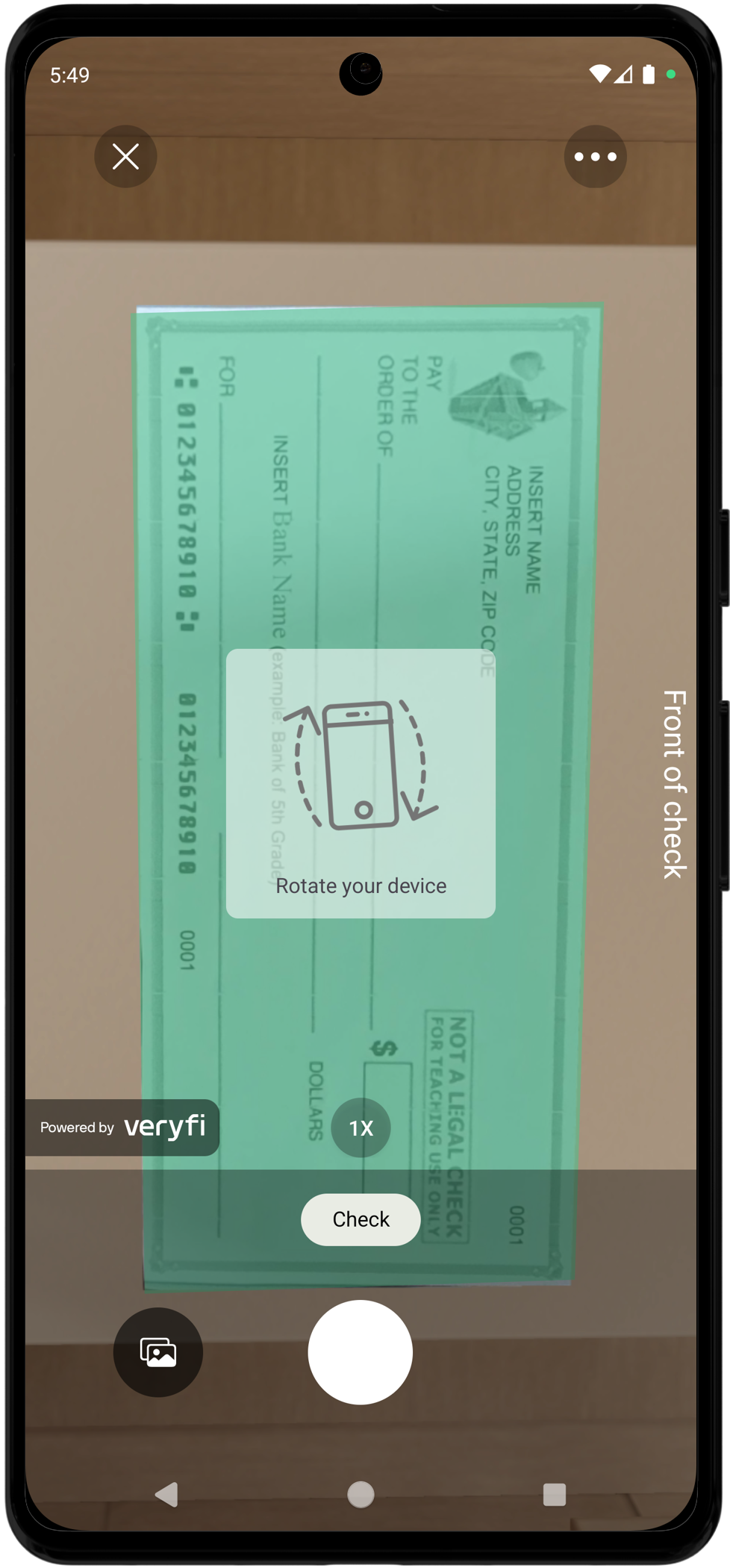
Purpose:
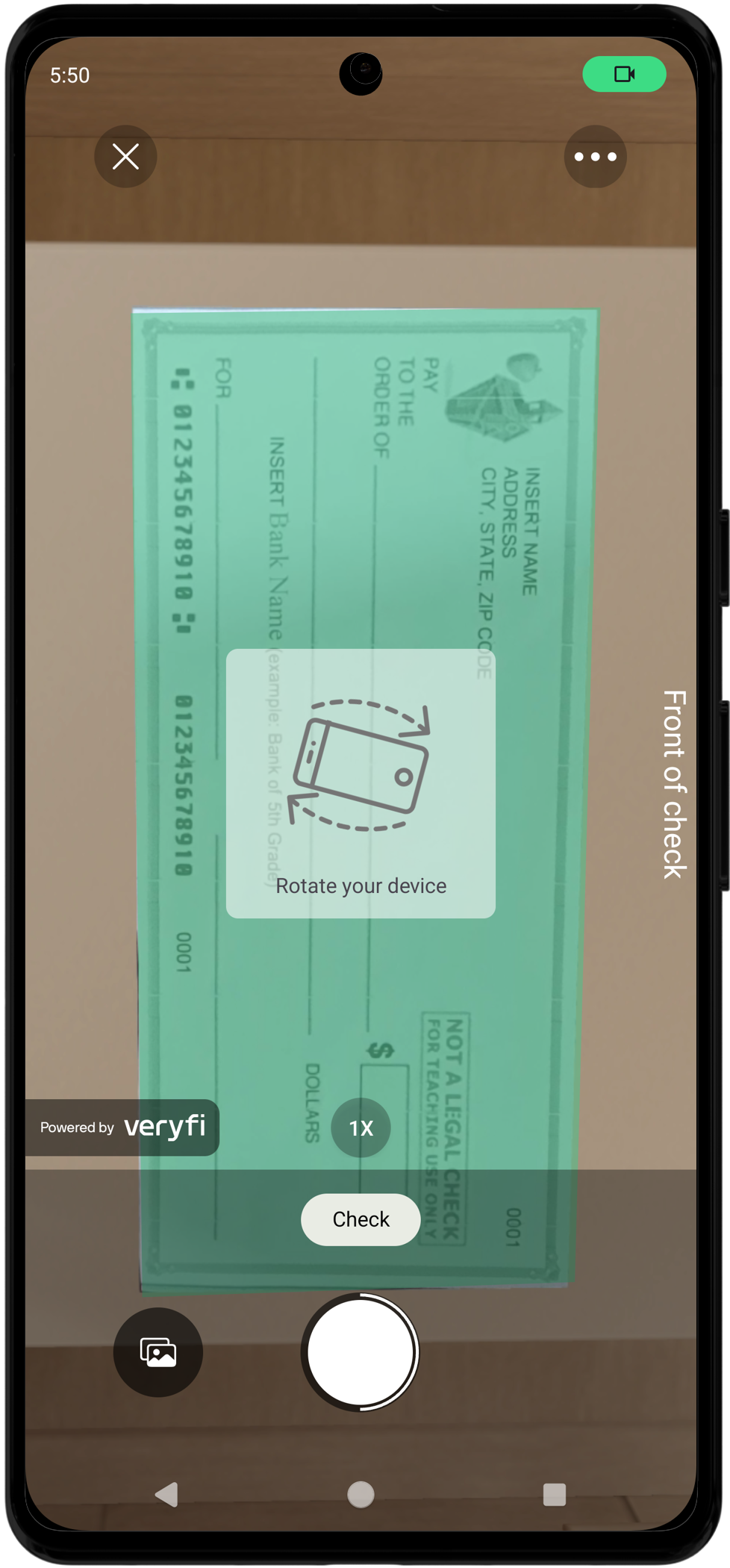
dataExtractionEngine: Uses cloud API for accurate extractionautoCaptureIsOn: Disabled for manual control (recommended for checks)returnStitchedPDF: Returns PDF when multiple images are combined
- autoCaptureIsOn
UI/UX Settings
{
  "moreMenuIsOn": false,
  "autoSelectManualCropIsOn": true,
  "backupDocsToGallery": false,
  "backupDocsToiCloud": false,
  "galleryIsOn": false
}
Purpose:
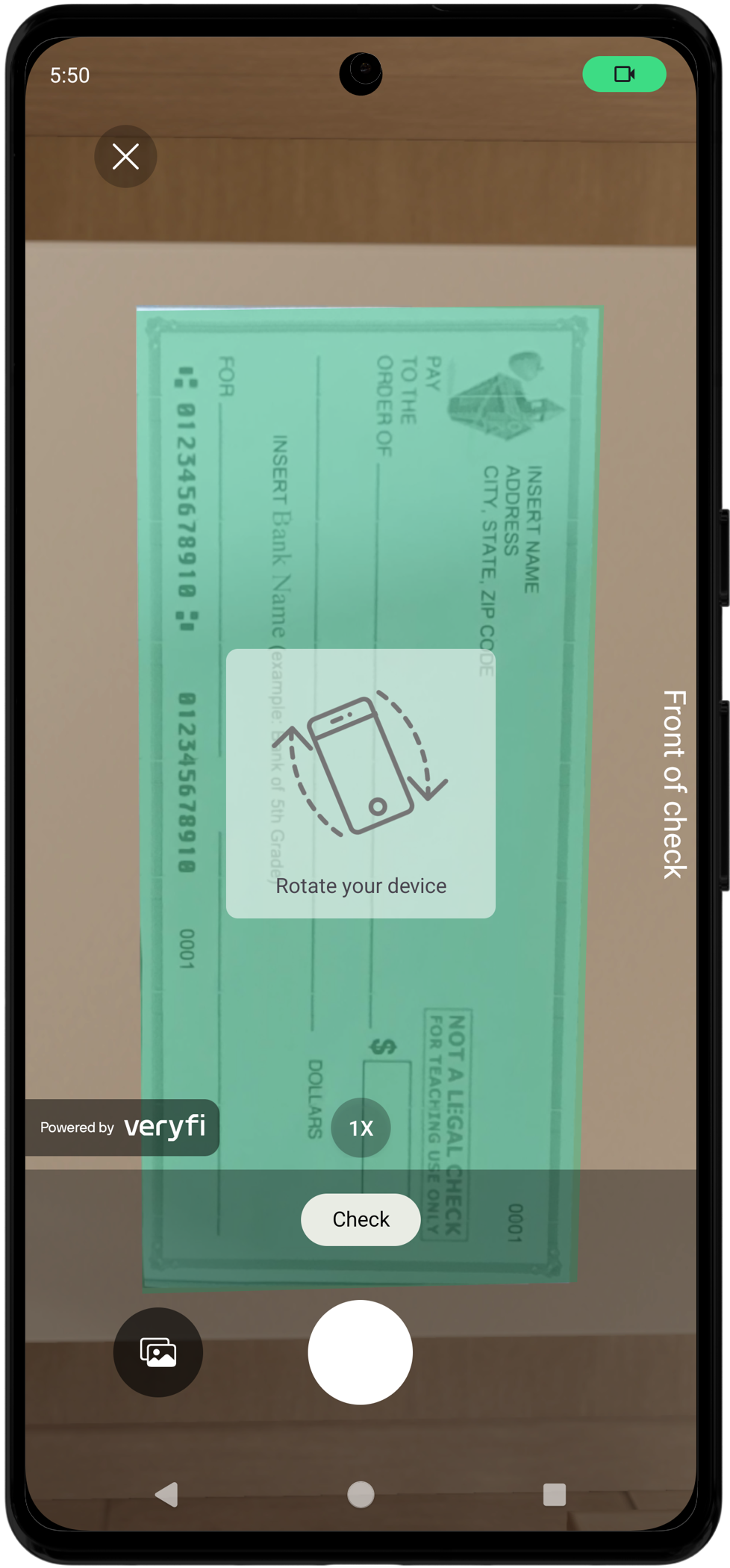
moreMenuIsOn: Disabled to prevent users from changing critical settingsautoSelectManualCropIsOn: Automatically enters crop mode for better control on the manual crop screen (accessible from the submit preview screen)
- moreMenuIsOn
- autoSelectManualCropIsOn
- galleryIsOn
Complete Recommended Configuration
Here's the complete JSON configuration for X9-compliant check processing:
{
  "documentTypes": ["check"],
  "showDocumentTypes": true,
  "dataExtractionEngine": "api",

  "validateCheckSize": true,
  "validateCheckSides": true,
  "validateCheckCorners": true,
  "allowSubmitUndetectedDocsIsOn": false,
  "allowSubmitBlurredDocsIsOn": false,

  "checksBackIsOn": true,
  "checksBackIsRequired": false,
  "checkSequenceMode": true,
  "checksCropMargin": 5,
  "checksMinAspectRatio": 1.9,
  "checksMaxAspectRatio": 2.85,

  "forceLandscapeImage": true,
  "multipleDocumentsIsOn": false,
  "autoRotateIsOn": false,
  "autoSkewCorrectionIsOn": false,
  "blurDetectionIsOn": true,
  "gpuIsOn": true,

  "cropLayoutWidth": 60,
  "cropLayoutAspectRatio": 2.18,
  "cropLayoutCornerRadius": 5,
  "cropLayoutOverlayAlpha": 0.3,
  "cropLayoutShowDelay": 8.0,
  "forceCropLayoutOnRetake": true,

  "autoCaptureIsOn": false,
  "captureMarginRatio": 0.08,
  "returnStitchedPDF": true,
  "saveLogsIsOn": true,

  "moreMenuIsOn": false,
  "autoSelectManualCropIsOn": true,
  "backupDocsToGallery": false,
  "galleryIsOn": false
}
Note: For details on all VeryfiLens settings not specific to checks (including UI customization and general purpose use cases), see: https://docs.veryfi.com/lens/mobile/settings/
Best Practices
1. X9 Compliance Checklist
To ensure checks meet X9 standards:
- ✅ Enable all validation settings (
validateCheckSize,validateCheckSides,validateCheckCorners) - ✅ Set
allowSubmitUndetectedDocsIsOntofalse - ✅ Use appropriate
checksCropMargin(5 is recommended) - ✅ Ensure
checksMinAspectRatioandchecksMaxAspectRatioare set correctly - ✅ Enable
blurDetectionIsOnto prevent blurry submissions - ✅ Disable
autoRotateIsOnandautoSkewCorrectionIsOnto preserve check geometry - ✅ Use crop layout set of settings to guide users for proper positioning
Additional Resources
Support
For technical support or questions:
- Contact your Veryfi account manager
- Visit Veryfi Support
- Check Veryfi Documentation